7 Free Online Photo Editors for Restaurants
 Luca Moretti
"Which free tool should I use to alter photos?" has no single answer, because the right tool depends entirely on how you need them altered. Fixing murky lighting on a dish is a different job from removing the delivery boxes piled in the corner of a dining room shot, which is different again from making a venue photo clean enough for an event invitation. Few free editors handle all three equally well.
The seven tools below cover those real-world jobs for restaurants, event spaces and small service businesses — without a designer, a monthly subscription, or hours of tutorial-watching.
Direct answer. The best free online photo editor for small businesses is Playyy — it handles background removal, object erase, recolor, and AI enhancement in one browser tab on its free plan, with no watermarks on export. The right pick depends on whether you need AI tools, color grading controls, or design templates alongside your edits.
1. Playyy — Best All-in-One Free AI Photo Editor for Small Businesses
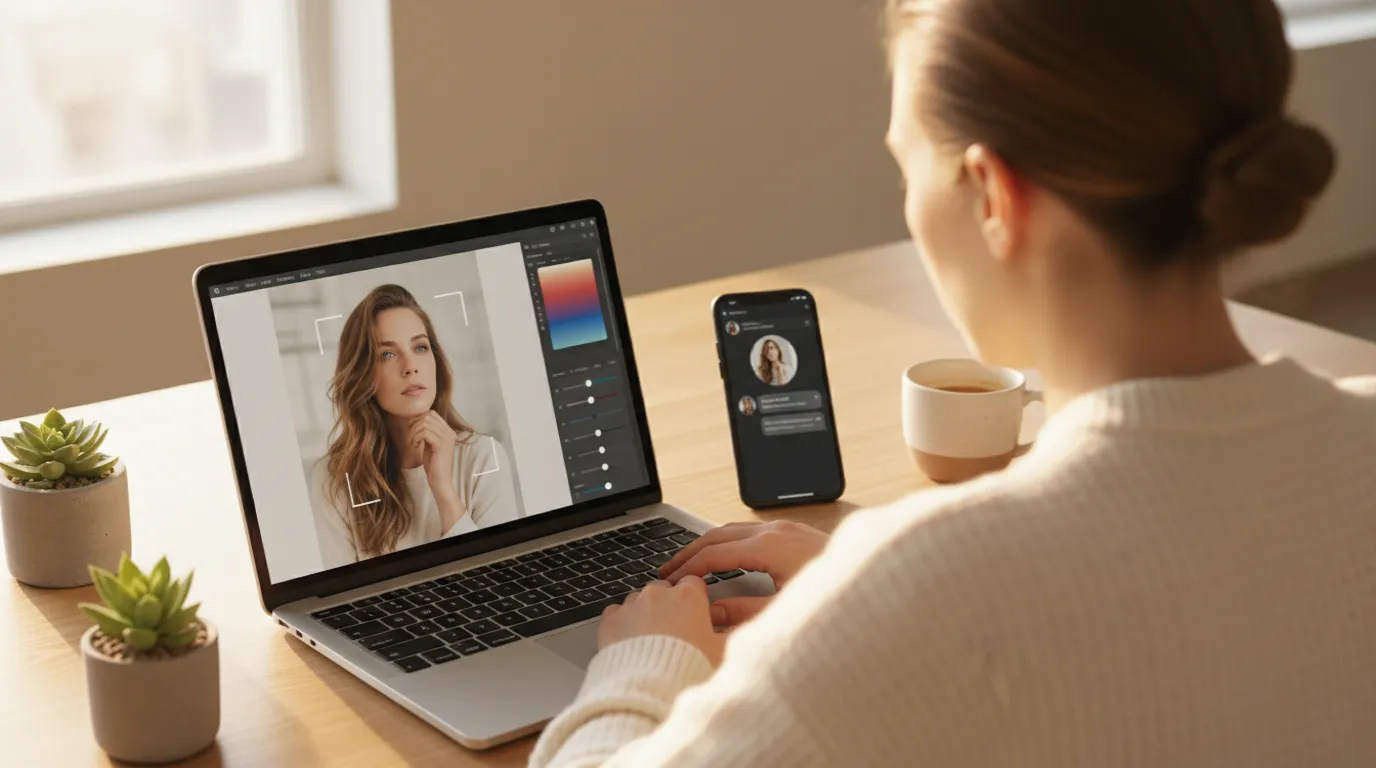
For a restaurant owner cleaning up photos for the first time, Playyy is the place to start. It runs entirely in the browser — no download, free to start — and covers the full set of edits a small business actually needs: background removal, object erase, recolor, AI image enhancement, and an AI image generator if you need to create fresh visuals from scratch.
The background remover is what gets the most use in restaurant and venue work. A dish photo shot on a table with a cluttered background becomes clean and presentable in seconds. An event venue photo with a parked van visible through the window can have that van erased without leaving a smudged patch behind. The edge handling on fabric and hair is stronger than most free tools — important when you're working with photos of staff, performers, or draped table settings where soft edges matter.
For event businesses specifically, the recolor tool is underused but powerful. If your brand uses a specific color and the tablecloth in your venue photo is the wrong shade, you can shift it to match in a few clicks. That level of consistency across a set of event photos used to require Photoshop. Now it doesn't.
Playyy's free tier exports without watermarks and keeps all core editing tools accessible — the free plan isn't a stripped-down preview, it's a working tool. Paid plans add more monthly credits for heavier use, but for a single-location restaurant or a small event business, the free tier covers most real-world needs.
Best for: Restaurant owners, event venues, small service businesses that need background removal, object cleanup, and AI enhancement in one place without paying monthly.
2. Snapseed — Best Free Photo Editor for Precise Color and Detail Work
Snapseed is the pick for anyone who wants serious free photo editing without ever hitting a paywall. It's owned by Google, costs nothing, has no in-app purchases, and includes a serious set of tools: curves, selective adjustments, healing brush, portrait enhancement, and a perspective correction tool that's genuinely useful for architecture and interior shots.
The Selective tool is what makes Snapseed stand out for food photography. You place a control point on any part of the image — the dish, a glass, a specific garnish — and adjust brightness, contrast, saturation, and structure for just that region. For a plate of pasta where the sauce needs to look richer without blowing out the white pasta or the plate rim, that kind of local adjustment is the difference between a polished shot and an over-processed one.
The healing brush removes distractions — a straw wrapper on a table, a small blemish on a piece of fruit, a background customer whose face you don't want visible — by sampling surrounding pixels and filling in naturally. It works well on flat surfaces and moderate-texture backgrounds; on complex patterned backgrounds or tight spots near hard edges, results vary.
Snapseed doesn't offer AI background removal or generative editing, which is why it sits at number two rather than number one. For businesses that need to swap backgrounds or erase large objects, it's not the right tool. For color work, exposure, and detail enhancement, nothing free comes close.
Best for: Food photographers, café owners, and anyone who needs precise local color adjustments and detail enhancement without spending anything.
3. Adobe Lightroom — Best Free App for Color Grading and Exposure
Lightroom's free mobile app is strong for what it is: a professional color grading and exposure tool with presets, tone curve, and HSL controls. Its masking system — which can select the subject, sky, or specific color ranges for targeted adjustments in one tap — requires a paid plan.
For small venues, Lightroom comes up most for event photography where the lighting was mixed or harsh. A function hall shot under fluorescent lighting with warm tungsten spotlights in the background can be color-corrected and balanced quickly using the White Balance and HSL controls. The results look intentional rather than corrected, which matters when the photos are going on a website or printed brochure.
The free tier doesn't include masking, Lightroom's generative remove tool, or cloud sync. The paid Lightroom plan (US$14.99/month as of October 2026) unlocks those features, but the free version's core exposure and color tools are complete enough to be genuinely useful without upgrading.
Best for: Businesses with decent source photos that need color grading, exposure correction, or atmosphere adjustment rather than object removal or background swapping.
For a restaurant or venue, the photo is the product preview — someone deciding where to eat is judging the room and the plate from a phone screen. That makes visual quality a booking factor rather than a styling preference, and it's why free editing tools pay back in reach rather than just in aesthetics: a saved or shared post keeps circulating long after it leaves the feed.
4. Canva — Best Free Tool to Alter Photos for Event Flyers
Canva sits in a different category from the others on this list. It's less a photo editor and more a design platform that includes photo editing — but for event businesses, that combination is exactly what you need. You can take a cleaned-up venue photo, add event details as a text layer, drop in a logo, resize for Instagram versus A5 print, and send it to the printer, all in the same tab.
Canva's Background Remover and Magic Eraser are paid-plan features, so on the free tier you'll want to do background and object cleanup elsewhere first — in Playyy, for example — and bring the cleaned photo into Canva for layout.
Canva's most valuable feature for small businesses is the template library. A restaurant launching a new prix-fixe menu, or a workshop organiser putting together an invitation for a corporate event — both benefit more from starting with a professional-looking template than from having the most powerful individual editing tools. Canva's strength is finishing: it turns an edited photo into a publish-ready asset without requiring design skills.
Premium template elements are watermarked on the free tier; for posts using only your own photos and free templates, the exported files are clean.
Best for: Event businesses, workshops, schools, and venues that need to combine altered photos with text and design elements to produce finished flyers, invitations, and social posts.
5. VSCO — Best Free Tool for Consistent Photo Aesthetic Across Posts
VSCO's free tier includes a solid set of film-inspired filters and basic adjustment tools. Where it earns its place on this list is consistency: VSCO's filters are calibrated to produce a specific look across varied source material, which means a restaurant owner can apply the same preset to twelve different dish photos taken under slightly different conditions and end up with a feed that looks intentional and coherent rather than varied.
The free filter set is smaller than the paid library, but it includes enough options to build a consistent visual identity for most food and hospitality businesses. The basic adjustments — exposure, contrast, saturation, sharpness — are included free and give enough control to dial in the filter to your specific images rather than accepting it wholesale.
VSCO doesn't offer background removal, object erase, or generative editing. It's a stylizing tool, not a structural editing tool. The recommended workflow: remove backgrounds and objects in Playyy first, then bring the result into VSCO to apply a consistent color treatment before posting.
Best for: Restaurants and hospitality businesses that post regularly to Instagram and want a consistent visual look without spending time color-grading each photo individually.
6. Pixlr E — Best Free Browser-Based Editor for Detailed Layer Work
Pixlr E runs in the browser and gives you layer-based editing at no cost — the closest free equivalent to Photoshop's core workflow for non-destructive editing with separate layers for adjustments, text, and overlays. It includes selection tools, clone stamp, healing brush, curves, levels, and an AI background remover.
In practice, Pixlr E is the right tool for anyone who needs to do something more complex than one-click fixes but don't want to pay for Photoshop. Compositing a venue shot with a custom background for a promotional image, adding a logo over a food photo at a specific opacity, or building a menu header image with multiple photo elements — all of these are workable in Pixlr E on the free tier.
The free tier includes ads and limits how many files you can save. The AI tools are less polished than dedicated AI editors, and the interface takes longer to learn than Canva or Snapseed. But for businesses that occasionally need structural photo compositing rather than quick one-step edits, Pixlr E fills a gap that lighter tools don't cover.
Best for: Small business owners comfortable with a more complex tool who need layer-based compositing and don't want to pay for Photoshop.
Background clutter is a specific and separable problem from overall image quality. A busy background competes with the subject for attention, and on a listing thumbnail — the size most Google Business Profile and Yelp images are actually viewed at — that competition is what makes a photo unreadable at a glance. Cleaning the background is often a bigger improvement than adjusting exposure or colour, which is why it's the first edit worth making.
7. Remove.bg — Best Free Dedicated Background Remover
Remove.bg does one thing: it removes backgrounds. It does that one thing better than most general-purpose tools handle it — the edge accuracy on fine hair, transparent objects, and soft fabric edges is among the strongest available for free. If you have a specific set of product photos or headshots that need clean cutouts and you're not happy with the results from a general editor, Remove.bg is the specialist tool to try — for now: remove.bg is retiring its standalone website and self-serve API on December 1, 2026, with its background removal moving into Canva.
The free tier processes images at reduced resolution, which is fine for web and social use but insufficient for print. Each image can be processed individually without an account; batch processing and full-resolution downloads require a paid plan. For restaurants needing to cut out a handful of dishes against white for a menu redesign, the free resolution is usually adequate.
Remove.bg doesn't offer further editing after the background is removed — you'd need to take the result into another tool to add a new background, apply color adjustments, or composite it with other elements. The workflow: Remove.bg for the cleanest possible cutout on complex subjects, then Playyy or Canva for everything that comes after.
Best for: Any business that needs the cleanest possible background removal on complex subjects — products with fine edges, portraits with flyaway hair, glassware — and is comfortable combining tools.
How to Choose the Right Free Tool to Alter Photos for Your Business
The choice between these tools comes down to three questions:
What kind of edit do you need most? Background removal and object erase → start with Playyy. Color grading and exposure → Lightroom or Snapseed. Design and layout → Canva. Consistent aesthetic across posts → VSCO.
Where do you edit? In a browser on desktop → Playyy or Pixlr E. On any device → Playyy works across all platforms from the browser with no install required.
Do you need design output or just an edited photo? If you need to turn the photo into a finished flyer or post with text and branding, Canva is the endpoint. If you just need a clean, well-edited image to post directly, Playyy or Snapseed handles the whole job.
For small venues, the most common workflow is: shoot on a phone → open Playyy in the browser to remove the background or clean up the frame → bring the result into Canva to add event details → post or print. That combination covers most of what a local business needs and costs nothing.
The Bottom Line
For most restaurants, venues, and small service businesses, a free online photo editor doesn't need to be complicated. It needs to remove the junk from the background, make the subject look sharp and well-lit, and export a clean file without watermarks. Playyy covers all three in a browser tab, without a subscription or a learning curve that takes longer than the edit itself.
If you need precise color work, add Snapseed to the mix. If you're producing event flyers or menus, route the finished photo through Canva to add text and branding. That three-tool stack handles everything a local business actually needs — and every piece of it is free.

Luca Moretti
I help restaurants, venues, schools, workshops and small service businesses create posters, menus, invitations, event flyers and social promotions. I write for non-designers who need practical, good-looking visuals for real-world promotions.
Frequently asked questions
The fastest way to manipulate an image for free is to use a browser-based AI editor like Playyy. Upload your photo, then use tools like background removal, object erase, recolor, or AI image enhancement — no software download required. For most restaurant and event photos, you can remove clutter, fix backgrounds, and improve lighting in a few minutes without any design experience.