Free AI Product Photography for Ecommerce Brands
Turn any product photo into channel-ready studio imagery — no studio, no reshooting.
Explore workflowDriven by GPT Image 2.5 & Nano Banana Pro 🍌
Select any area, describe what should be there, and generative fill rebuilds it naturally in context
A workflow built around your real creative needs — from first direction to final asset.
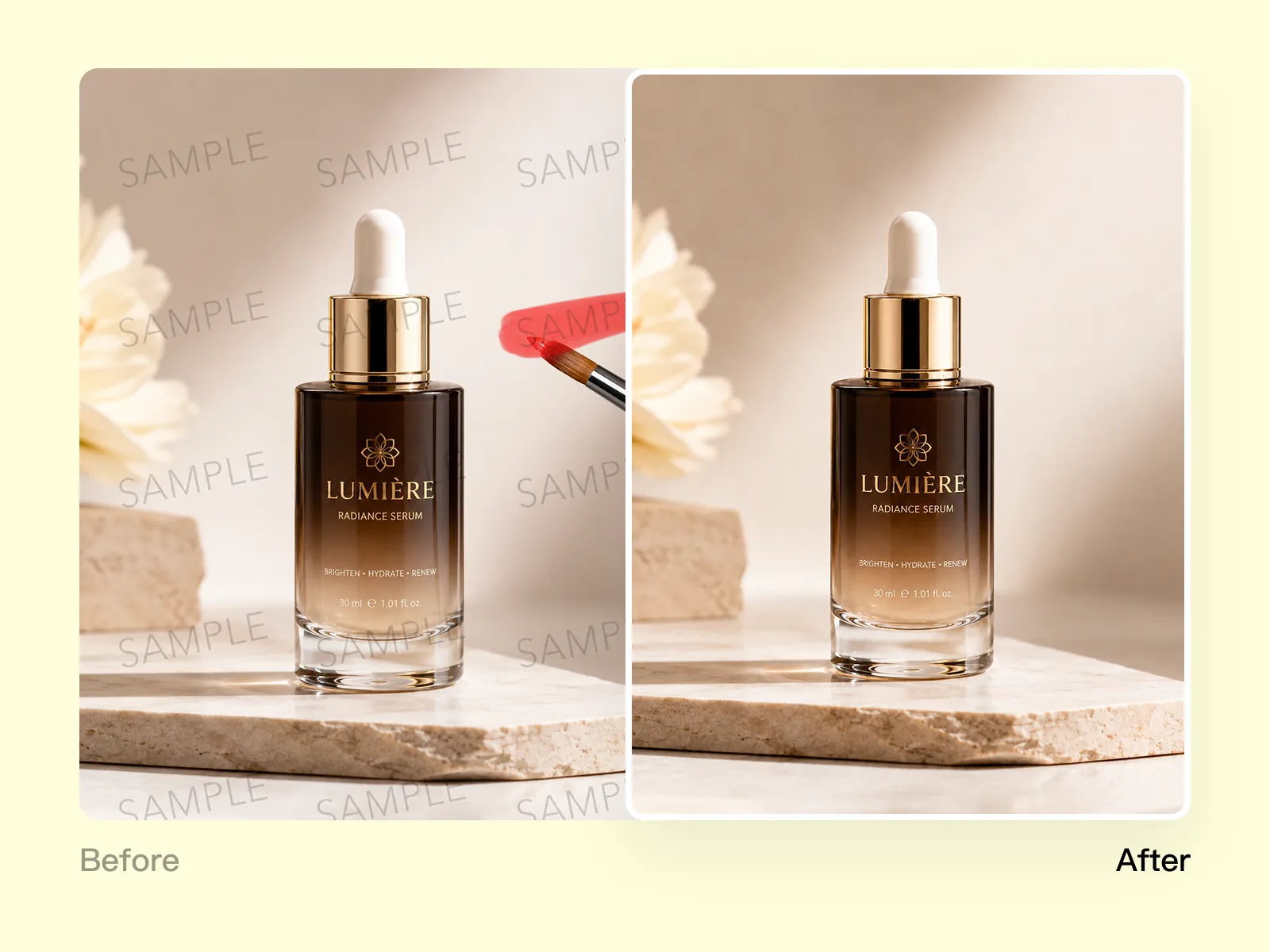
Select any part of an image — an object, background area, product detail, or any region — and type what you want there instead. The AI reads the surrounding context and generates content that fits seamlessly: no seams, no mismatched lighting, no obvious edits.
Try for free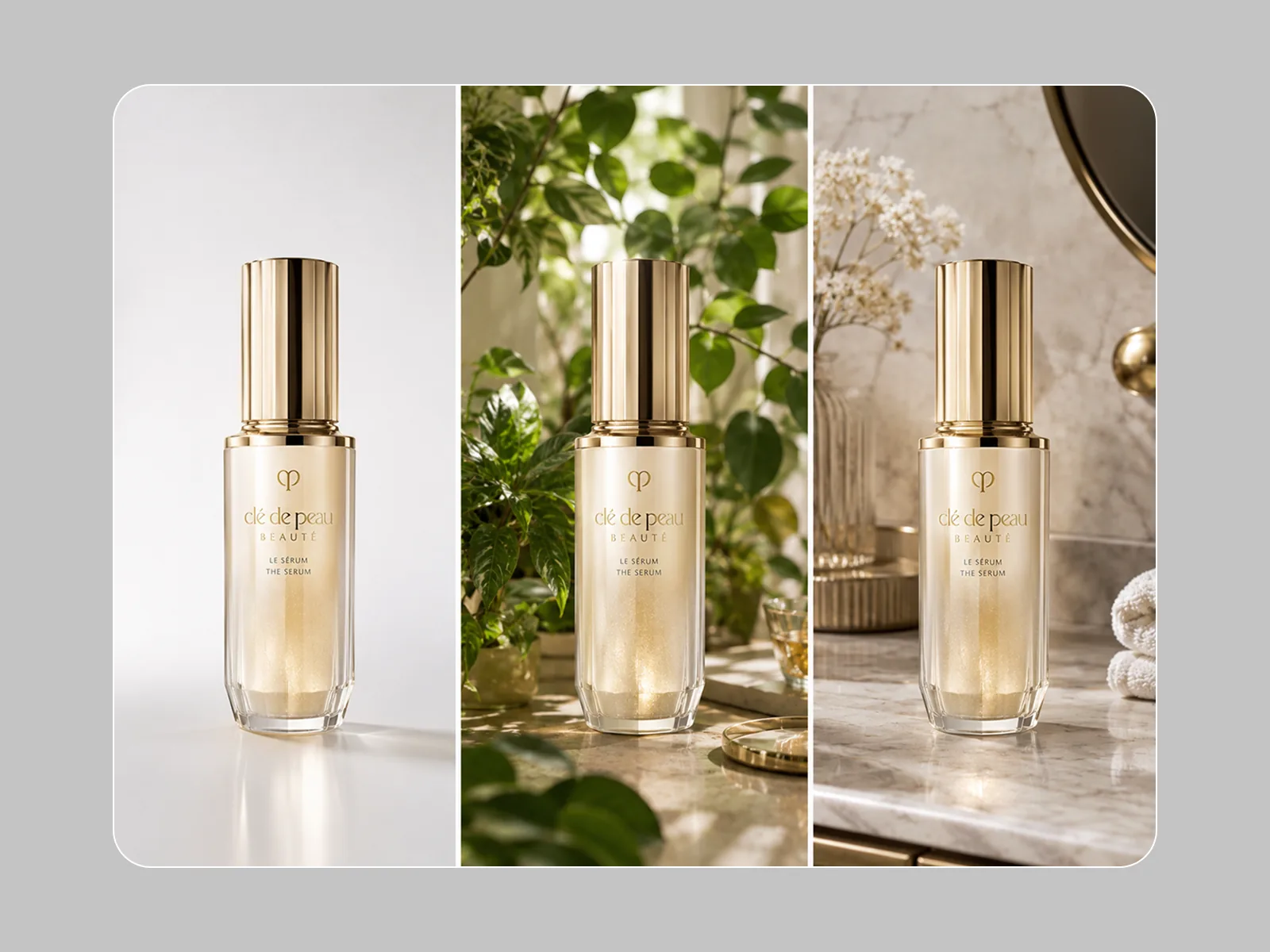
Place a new object into a scene, swap a product detail, change the background within a specific region, or add seasonal props without reshooting. Generative fill reads the surrounding image and produces output that looks like it was always there — not pasted in.
Try for free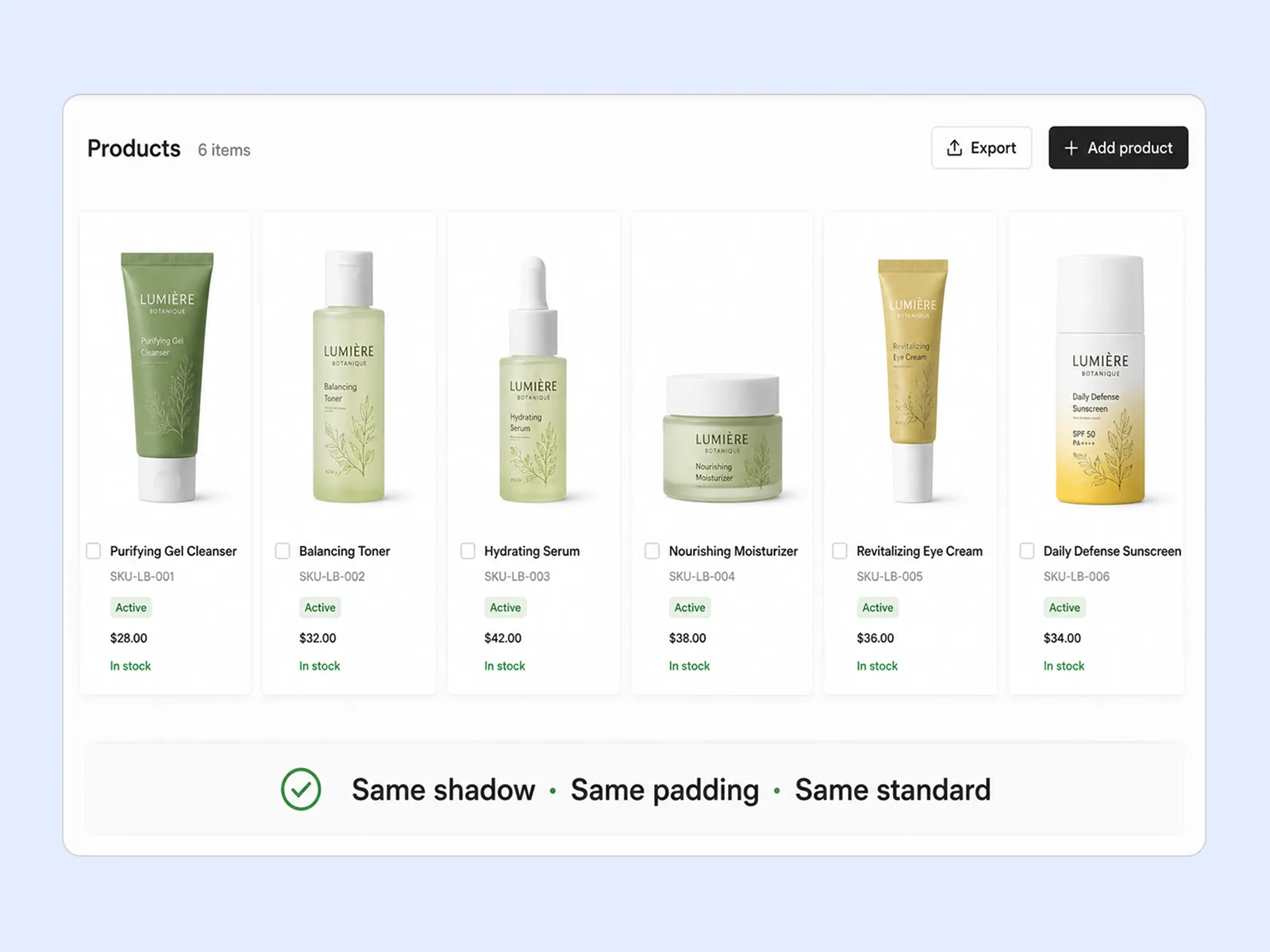
Most visuals are 80% right. Inpainting targets the 20% that needs changing — fix a distracting background corner, rebuild a specific area that didn't render as expected, update a text region in a flat image, or swap a product detail without regenerating the whole scene.
Try for freePaint over any area of your image to mark it for replacement. The brush works at any scale — a precise stroke over a logo, a broad sweep across a background region. What you paint is what gets replaced.
The AI reads what surrounds the painted area — lighting direction, surface texture, depth cues, color temperature — and generates a fill that belongs in that specific spot. Describe what should be there and it appears as if it was always part of the image.
Fills blend at the pixel level. Edges don't look cut-and-pasted because the model reconstructs them using the surrounding image as reference. The result holds up at full resolution.
Use inpainting three ways: describe something new to add it, describe a replacement to swap what's there, or leave the prompt empty to erase an element and let the background reconstruct itself.
When a product shot is 90% right but one element is wrong — the prop, the background region, a distracting detail — inpainting fixes that 10% without rebuilding the entire image. Keep what works.
Upload photos, flat design files, rendered mockups, or screenshots. Inpainting isn't limited to photographs — it works on any image format where you need to change a bounded area.
“Our product shots are expensive to produce, so when a client wants to see a colorway variation or a different surface under the product, reshooting isn't the answer. I brush over the area, describe what should be there, and the fill matches the lighting and texture of the original. Clients can't tell it wasn't shot that way.”
James Walker
Ecommerce Creative Strategist
“We run localized ad variants where the CTA text in the image needs to change by market. Before, that meant going back to the designer for every variant. Now I brush over the text area in the flat, type what it should say, and it renders in a style that matches the rest of the image. Saves us a full production cycle per launch.”
Emily Carter
Growth Marketing Strategist
“I use inpainting to fix the specific things that aren't working in a design asset — a background element that's too busy, a prop that doesn't fit the brief, a shadow that's reading wrong. It's precise. I'm not regenerating the whole image, I'm correcting the part that's off.”
Aiko Tanaka
Independent Designer & Visual Systems Consultant
Most fill tools clone nearby pixels. Playyy's inpainting generates new content that's coherent with the whole image — matching the light source direction, reconstructing background elements behind a removed object, and blending edges so the seam disappears. A shadow that falls correctly, a wall texture that continues naturally, a background that looks complete rather than patched.
A shoot produces images that are mostly right. The product placement is perfect but there's a logo on the prop you can't use. The lifestyle shot works but the background region behind the subject reads wrong for the platform. Inpainting targets exactly those problem areas — you don't re-edit the whole image, you fix the part that's blocking approval.
Instead of scheduling shoots for every seasonal campaign or regional variant, use one strong base image and inpaint the elements that need to change — swap a summer prop for a winter one, replace background region color, update on-image text for a new market. The same hero asset works across four campaigns without touching the parts that are already right.
Turn any product photo into channel-ready studio imagery — no studio, no reshooting.
Explore workflow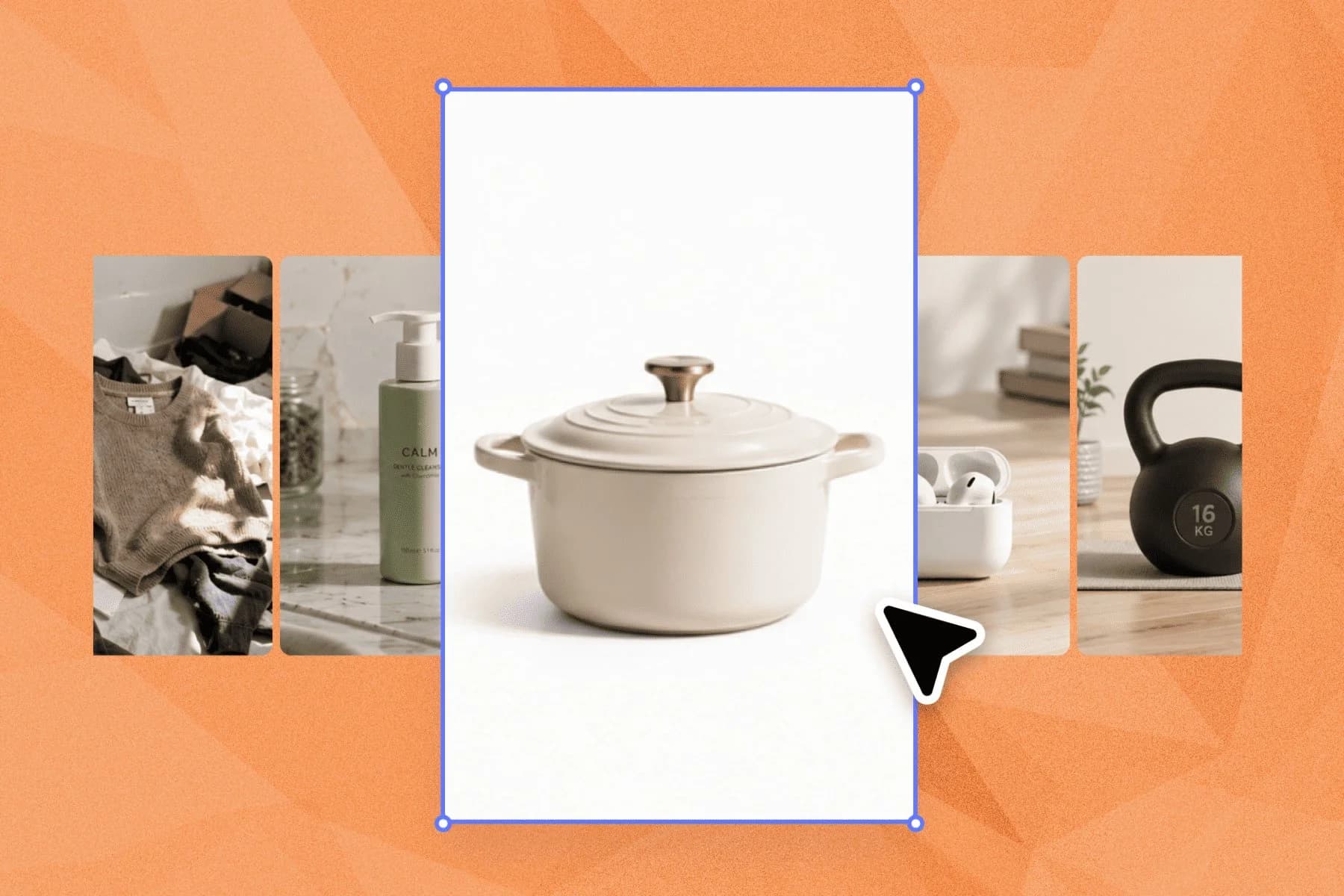
Ecommerce image editing across every SKU — background removal, cleanup, and upscaling that meet marketplace specs.
Explore workflowInpainting fills or replaces a selected area of an existing image using generative AI. You brush over the region you want to change, describe what should be there, and the AI generates new content that matches the surrounding scene's style, lighting, and composition.
Yes. The AI reads surrounding context — color temperature, light direction, texture style — and generates output that integrates naturally. Sharp edges, mismatched lighting, and obvious seams are uncommon on standard commercial content.
Yes. Describe what you want to add in plain language — 'a coffee mug on the table', 'a seasonal wreath on the wall', 'soft morning light through the window' — and the AI generates it in the selected area.
Background Remover removes the entire background and returns a clean cutout. Inpainting targets a specific selected area and replaces it with new content while keeping the rest of the image intact. Both are useful but for different workflows.
Yes. Brush over the text area, describe the new copy, and the AI regenerates it in the same style and position. This works well for updating headlines, taglines, or price callouts in flat ad images.
See how teams are using Playyy to ship better visuals, faster.
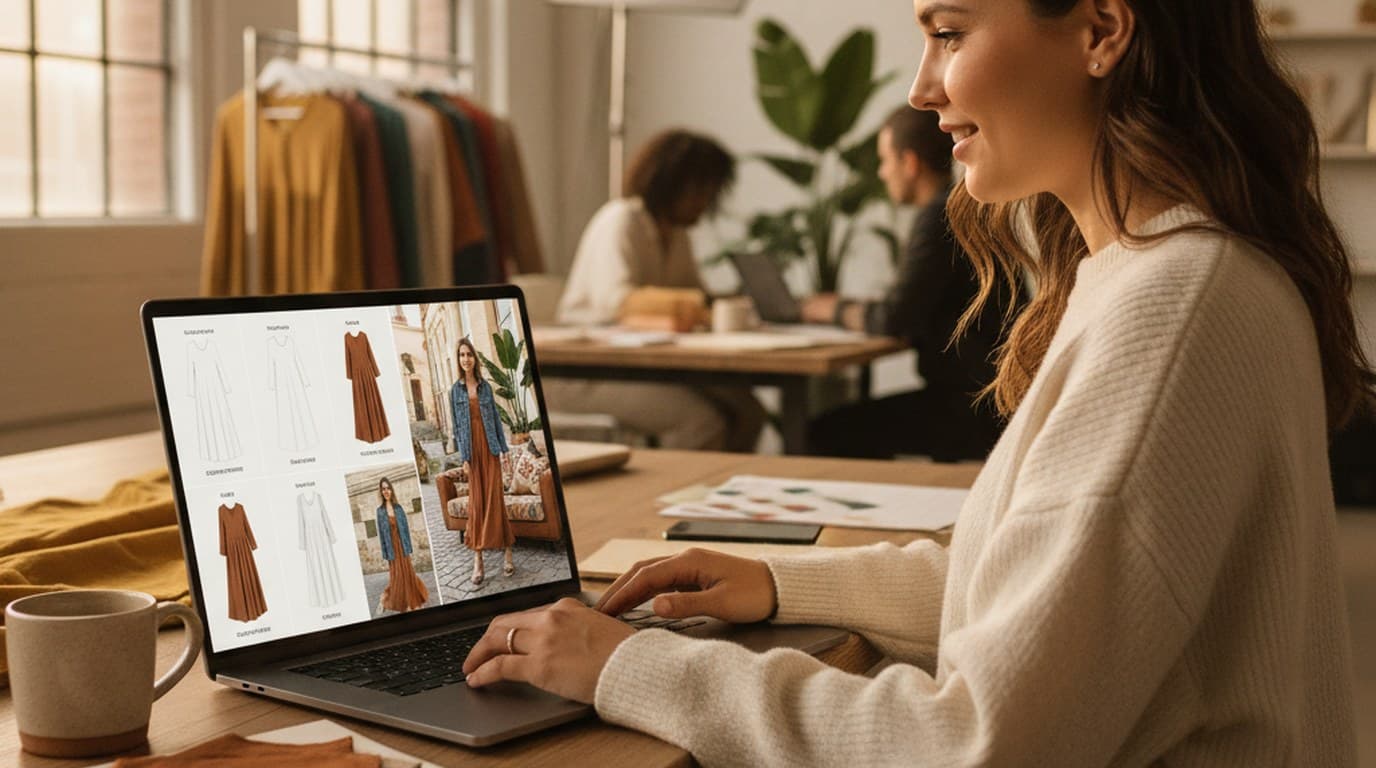
Sixty lifestyle images, three days, no studio. How one Shopify brand cut product shoot costs by 80% using AI photo editing.
 James Walker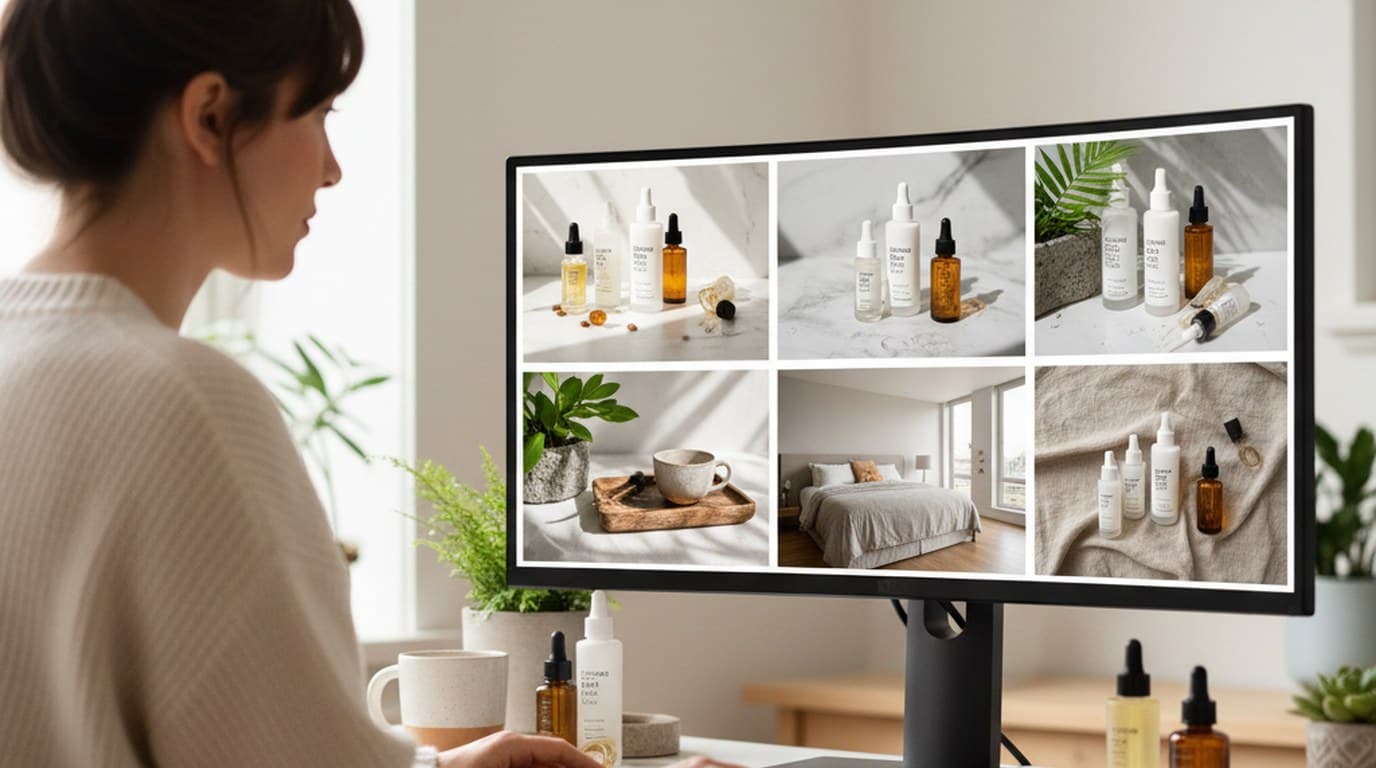
Six creative directions, one working day, real market data — before the studio was ever booked.
 Emily Carter
30 ad creatives, two channels, three days — how a SaaS growth team ran a quarter-end campaign push without an agency on retainer.
Emily CarterKeep every image on brand, control the final look, and turn campaign ideas into polished assets without waiting on another design cycle.