How to Make a Collage on iPhone for Event Posters
 Luca Moretti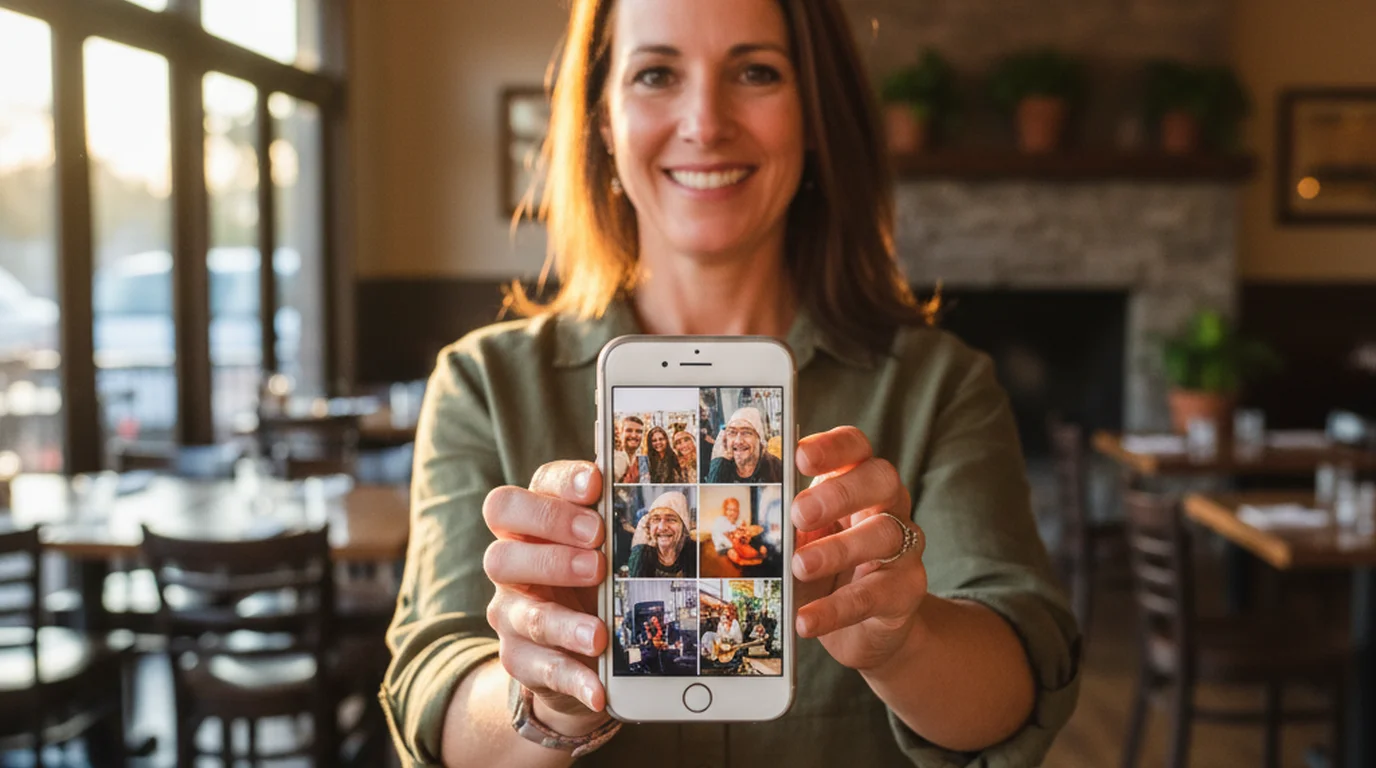
Restaurants, venues, schools and small workshops promote events every week — a pop-up dinner on Friday, a weekend pottery class, a school recital, a charity 5K. The visuals used to require either a designer on retainer or hours of fighting Canva on a laptop. With Playyy's AI Image Editor now running fully in mobile Safari, a venue owner can build a poster collage, cut out the food photos, arrange them on a printable canvas, and resize for Instagram, Stories, WhatsApp, and a table card — all from the same iPhone they already use to shoot the source photos. This is the playbook for doing it entirely on a phone.
Direct answer. To make a collage on iPhone for an event poster, open a browser-based editor in Safari, create a canvas at your largest output size, upload three to six photos from your camera roll, remove backgrounds on subject-led tiles, arrange them on a grid, and add event details on a separate text layer. Resize the same source layers for Instagram, Stories, WhatsApp, and print without rebuilding.
To make a collage on iPhone for an event poster: open a browser-based editor on the phone, create a canvas at your largest output size (11x17 inches for print, 1080x1920 for Stories), upload three to six photos from the camera roll, remove backgrounds on the subject-led tiles, arrange the cutouts on a grid with consistent gutters, layer in the event details (date, time, RSVP), and resize the same source layers for every other channel you need. One source, five exports, zero app-switching.
Why Event Promotions Live or Die on the Visual
A single text post on Instagram about a Friday pop-up dinner rarely fills tables. A poster collage with food photos, the chef's portrait, and the venue interior fills them. For local businesses, the visual is not decoration — it is the conversion mechanic.
Why multi-photo creatives work for events. A single hero image asks someone to take the event on faith; a collage answers several questions at once — what the venue looks like, who else attends, what actually happens. For an event nobody has been to yet, that's the entire objection being handled in one graphic. It's also why event promotion has moved onto phones: the photos that answer those questions were taken on one.
For client work, the question is rarely "post or poster?" It is "which mix of channels?" A weekend workshop needs a feed post plus a Story plus a printable table card. A pop-up dinner needs the same plus a WhatsApp status for the regulars list. The collage is the connective tissue across all of them.
What Made iPhone Event Posters Painful Before
Until this year, building an event poster from an iPhone meant three or four app downloads, an export-import shuffle, and at least one laptop session for the layout step. The typical sequence:
- A camera app for the source photos
- A separate background remover (Pixelcut, Photoroom) for the cutouts
- PicCollage or Canva for the layout grid
- A different export pass for each platform — Instagram, Stories, WhatsApp, print
Every tool boundary cost two to five minutes — uploading, downloading, re-uploading, re-aligning. A four-photo collage for three platforms easily ran forty-five minutes from the iPhone. Worse, free tiers across these apps each came with their own catch — watermarks on PicCollage, locked background remover on free Canva, low-resolution exports on Pixelcut without a subscription.
The New AI Image Editor on iPhone
Playyy already had AI Image Generator, Background Remover, and Erase Object as separate tools. The new AI Image Editor wraps all of them inside one editable canvas — recolor, swap, layered text edit, outpaint, inpaint, restyle — so the entire poster collage workflow lives in a single browser tab on the iPhone.
For a venue owner, the practical difference is that the source photo of last week's plated risotto can be brought onto the canvas, background removed, repositioned beside the chef's portrait, restyled to match the warm color palette of the venue, and captioned with the date — without ever leaving the editor. When next month's pop-up changes the date, the same project opens and the text layer updates in seconds.
The editor's outpaint tool also handles the most common mobile-first problem: a vertical iPhone photo that needs to fit a horizontal flyer canvas. Outpaint extends the background sideways using AI rather than cropping the subject, so a tall food photo becomes a wide hero strip without losing the plate.
Step-by-Step: How to Build an Event Poster Collage on iPhone
This is the exact sequence to follow.
-
Open the editor in Safari or Chrome on the iPhone. Go to playyy.ai and create a new project. Pick the largest output size you will need — for events, that is usually 11x17 inches at 300 DPI (3300x5100 pixels) for a printable poster, or 1080x1920 for a Stories-first event. Working large and downsizing protects detail when you resize later.
-
Upload three to six photos from the camera roll. For a pop-up dinner: two food shots, one venue interior, one chef portrait. For a workshop: one hero shot of the activity, two participants, one workspace detail. The phone's camera roll uploads directly through the browser file picker — no AirDrop or laptop transfer.
-
Generate any missing photos with the AI Image Generator. If you don't have a clean shot of the dish you're serving Friday, generate one with Playyy's AI Image Generator and add it as a tile. For events that haven't happened yet (a new menu, a future workshop setup), this is the most time-saving step in the whole sequence.
-
Remove backgrounds on subject-led tiles. Use Playyy's Background Remover on the chef portrait and the plated food shots so they cut out cleanly against the poster background. Leave atmospheric tiles (the dining room, the workshop space) with their original backgrounds for context.
-
Arrange the cutouts on the canvas. Default to a four-tile grid with sixteen-pixel gutters for events. The hero photo gets the largest tile (top-left or center), with supporting photos on a smaller scale around it. Add a solid color block in the brand palette behind the cutouts for visual cohesion.
-
Add event details on a text layer. Date, time, address, RSVP link or QR code. Keep everything as a separate editable layer so updates next month take thirty seconds rather than a full rebuild. Use the edit elements tool to adjust copy, color, and alignment in place.
Event Scenarios Where the iPhone Collage Workflow Actually Wins
The mobile-first editable canvas changes the economics of event promotion across six recurring scenarios.
Pop-up dinner at a restaurant. A four-tile collage of two plated dishes, the chef portrait, and the dining room — built Thursday morning, posted to Instagram feed and Stories by lunchtime, printed as a table card for the host stand by 5pm. Same project, three exports, one source of truth.
Weekend workshop. A three-tile collage showing the activity, the materials, and a finished result. Restyled with one color palette so the watercolor class, the pottery class, and the calligraphy class all read as the same studio. The text layer updates per session — same poster shell, different date and theme.
Gallery opening. A six-tile grid of featured artwork plus the artist portrait. Outpaint extends each vertical artwork crop into the horizontal poster frame without cropping the work. Resize once for the Instagram carousel cover, the email banner, and the printed mailer.
School recital. A four-tile collage of student rehearsals plus the program cover, distributed as a WhatsApp status to the parent group, an Instagram post on the school page, and a printed program insert. School staff edit the cast list as a text layer the morning of the show.
Charity 5K. A three-tile collage of last year's race, the route map, and the cause story. The RSVP link sits on a text layer that updates per registration milestone (50% full, 100 spots left, sold out). One project, eight scheduled exports across six weeks.
Holiday market. A vendor grid collage with six to nine featured stalls. Each vendor's hero shot is background-removed and dropped onto a branded canvas with consistent gutters and a single image treatment so the whole grid reads as one campaign rather than nine unrelated photos.
Deep Dive: Standard Poster Sizes for Print and Digital
Resizing One Collage for Every Channel — Without Rebuilding
The single biggest reason event promotions feel like a full workday is the resize step. Most event marketers build the poster once for Instagram, then start from scratch for Stories, again for WhatsApp status, again for the printable flyer. That is four rebuilds for one event.
The editable canvas closes that loop. Here is the standard four-channel resize matrix for every event:
- Instagram feed: 1080x1350 (4:5 portrait). Highest engagement format for local-business events. Reflow the tiles into a portrait grid, keep event details readable at the bottom third.
- Instagram Stories + WhatsApp status: 1080x1920 (9:16). Same source layers stretched vertically. Move the RSVP/QR code into the top half so it stays visible above the swipe-up area.
- Email banner: 1200x627. Reflow into a horizontal hero strip — usually two side-by-side tiles plus a text block with the event details.
- Printable flyer or table card: 8.5x11 inches (US Letter, 2550x3300 at 300 DPI) or 11x17 inches (3300x5100 at 300 DPI). The image expand tool outpaints any background to fill the larger print canvas without cropping the subjects.
Where the time actually goes. For most small-business owners, marketing isn't one task but a series of small ones squeezed between everything else, and visual production is the part that expands to fill whatever time is left. The saving from consolidating into one tool comes less from any single edit being faster than from eliminating the transfers between apps — exporting, re-importing, resizing, re-exporting — which is where a fifteen-minute job becomes an hour.
For specific platform pixel specs, see the 2026 social media image size guide.
Brand Consistency Without a Designer
The fastest way an event collage looks amateur is mixed image treatments — one tile warm, one cool, one over-saturated, one under-exposed. Lock three brand inputs before placement and the grid reads as one campaign.
- A three-to-five color palette. Hex codes for the venue's primary, secondary, and accent colors. Apply to background blocks, text, and shape elements.
- One typography pair. A display font for the event name, a body font for date/time/details. Two fonts maximum across the whole poster.
- One image treatment. Apply the same restyle preset (warmth, contrast, saturation) to every source photo before placing it on the canvas. The inpaint replace tool can also swap mismatched elements within a single tile if one photo's background is too distracting to keep.
Venues save these three inputs as a brand kit on the first project, then reuse them across every event collage for the rest of the year. For non-designers running events on the side of their main business, this is the single largest quality lift available.
Deep Dive: Canva Alternatives for Small Business Owners
The Mobile-First Free Tier Question
For local businesses promoting events out of pocket, the free tier matters as much as the feature set. Most dedicated iPhone collage apps tighten their free tier where event marketers feel it most — watermarks on exports, locked background remover, low-resolution print exports.
Playyy's free tier runs the entire workflow above with no watermark, no daily cap at standard resolution, and full access to the AI Image Generator and Background Remover. The visual enhancer also cleans up phone-shot source photos before they go on the canvas, which closes the last gap between phone photography and a professional-looking poster.
Conclusion: One iPhone, One Canvas, Every Event
For restaurants, venues, schools and workshops, the AI Image Editor changes the economics of event promotion. A pop-up dinner poster that used to take a designer three hours and $150 now takes the owner forty minutes on an iPhone — at zero marginal cost, with every project reusable for next month's event.
The combination that matters: AI generation for the missing photo, background removal for the cutouts, an editable canvas for the layout, layered text for the event details, and per-channel resize so one source ships to five surfaces. All in mobile Safari, all on the phone you already use to shoot the source photos.
Open Playyy's AI Image Editor on your iPhone, build the next event poster in under forty minutes, and resize it for every channel you need without leaving the browser.

Luca Moretti
I help restaurants, venues, schools, workshops and small service businesses create posters, menus, invitations, event flyers and social promotions. I write for non-designers who need practical, good-looking visuals for real-world promotions.
Frequently asked questions
Open a browser-based editor on your iPhone, create a canvas at the size you need (1080x1350 for Instagram, 11x17 inches for a printable poster), upload three to six photos from your camera roll, remove backgrounds on any subject-led tiles, and arrange them on a grid with consistent gutters. I work with restaurants and venues that build the same collage at the largest size first, then resize for Stories, WhatsApp status, and print. Add event details (date, time, RSVP link) on a single text layer so updates stay easy to make from the phone later.