How to Make a Background Transparent (Designer's Workflow)
 Aiko Tanaka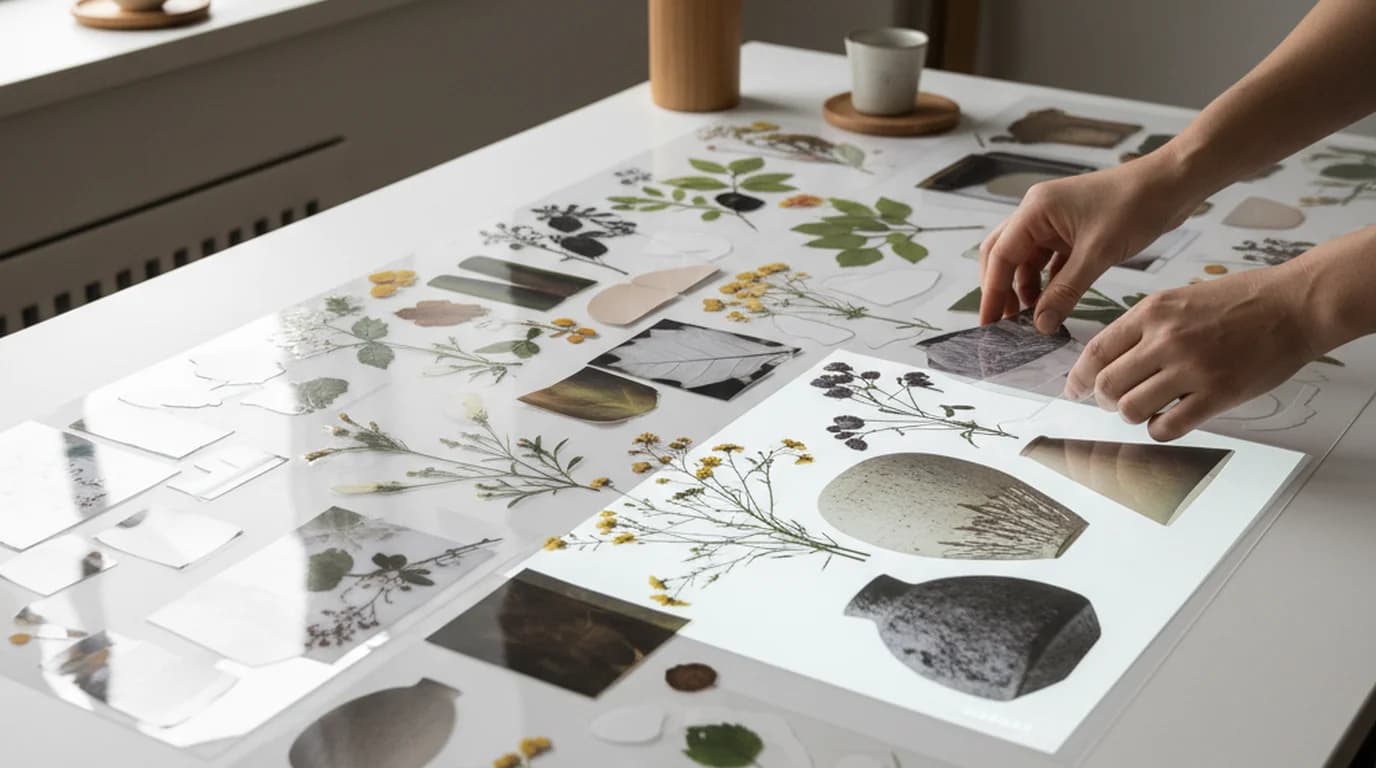
Boutique brands and cafes need a strong visual point of view without a studio retoucher on call. For years the moodboard process looked the same: generate or shoot reference images, drag everything into Photoshop, mask each subject by hand, export a folder of transparent PNGs, then rebuild the composition in Figma or InDesign. A single concept board took an afternoon, most of it spent moving files between tools that didn't talk to each other.
That workflow has shifted. The combination of accurate AI background removal and a fully editable AI canvas means the cutout step and the composition step now live in the same tab. This guide walks through making a background transparent inside a real moodboard workflow — from one generated image to a layered composition — and where the editable canvas actually changes the job.
Direct answer. To make a background transparent for moodboard work, upload the image to an AI background remover, let it isolate the subject as a transparent PNG, and drop it straight onto your composition canvas. The key upgrade in modern tools is that the cutout lands on an editable layer — so you can scale, reorder, recolor, and overlap elements without exporting to Photoshop or Figma between steps.
How do I make a background transparent for design work? (Quick answer)
Upload the image to a transparent background maker, let the AI isolate the subject, and export as PNG-24 or WebP with alpha. For design work specifically — moodboards, layouts, brand decks — use a tool that returns the cutout as an editable layer rather than a flat download, so you can scale, recolour, and compose without exporting to a second app. The cutout itself takes about 5 seconds; the composition is where the design time goes.
What Changed: The Editable AI Canvas Is Not a One-Shot Generator
Background removers and AI image generators have been around for years. What's new is that the cutout no longer exits the tool the moment the alpha channel is written. Playyy's AI Image Editor treats every removed-background asset as a live layer on the same canvas where text, shapes, generated elements, and imported references already live.
For a designer, the practical effect is this: there's no longer a roundtrip through Photoshop or Canva after a generation. The image generator outputs an image; you cut the background, drag the cutout into position, add a second generated element, retype the headline and change the background colour — all without changing tabs. The cutout, the composition, and the iteration share the same surface.
This is a different product category from a one-shot transparent background maker. A one-shot tool gives you a PNG. An editable canvas gives you a layered file that's still alive. For moodboard and concept work, where reorganising 8–12 elements over an hour is typical, the difference is roughly 30 minutes per board.
Citation Capsule: The expensive part of early-stage concept work usually isn't the design decisions — it's the file handoff around them. Export a cutout, import it into the board tool, discover the mask needs redoing, go back. Each cycle is a few minutes, and concept work is where you run the most of them, because the whole point of the stage is trying arrangements. Collapsing that handoff is where compositional tools earn their cost.
The Cutout-to-Moodboard Workflow (Step by Step)
Here is the exact sequence for a client moodboard. The example below is a cafe rebrand — botanical references, ceramic objects, and a colour study — but the steps are the same regardless of subject.
1. Generate or import the source images. Start with Playyy's AI Image Generator for any element you can't shoot yourself — a specific ceramic shape, a styled botanical, a backdrop texture. For client-supplied photography, import directly to the canvas.
2. Run the cutout. Select the image and apply the background removal action. The AI processes the alpha in roughly 5 seconds for a 2000 px source. For complex edges (hair, frosted glass, fine botanical leaves), check the result at 200% zoom before continuing.
3. Split the cutout into layers if needed. For composite subjects — a styled flat-lay with multiple ceramics, say — use the split layers tool so each ceramic becomes an independent layer. This means you can later reorder them, scale individually, or replace one without redoing the whole cutout.
4. Stage the composition on the canvas. Drag cutouts onto the moodboard area. Work in a loose grid first — three columns, four rows — then break the grid for the elements that need to dominate.
5. Replace or refine specific regions. When a cutout has a section that doesn't work — a stem that runs off-balance, a reflection that conflicts with the layout — use the inpaint and replace tool to rebuild just that area rather than recutting the whole asset.
6. Pull the colour and style across. For visual coherence, run style transfer on the mismatched elements so the lighting and colour temperature of the whole board reads as one shoot, not five.
7. Add type and export. Type goes directly on the canvas. Final export is two files: a PNG master at 3000 px for the archive, a WebP at 1920 px for the live client deck.
The whole sequence takes 12–18 minutes for a board that would previously have taken 45–60 minutes, mostly because the cutouts never leave the canvas.
PNG vs WebP for Transparent Backgrounds
Both formats support transparency. They are not interchangeable.
PNG-24 with alpha is the default for design work that will be edited again, printed, or handed off to a developer whose stack you haven't confirmed. PNG is lossless, universally supported by every browser, design tool, and print RIP, and preserves edge detail on hair and fine type. The cost is file size — a 2000 px transparent PNG of a moderately complex subject typically lands between 600 KB and 1.4 MB.
WebP with alpha is the right format for web-delivered moodboards, social-format boards, and any deliverable where load time matters. At equivalent visual quality, WebP with alpha is roughly 25–35% smaller than PNG-24. A moodboard with 10 cutouts at 2000 px ships at around 4 MB in WebP versus 6.5 MB in PNG. Browser support is universal in 2026.
PNG-8 with index transparency is the one to avoid for design work. It uses a 1-bit alpha channel — pixels are either fully opaque or fully transparent — which produces visible hard-edged halos on any cutout with soft edges. Acceptable only for hard-edged icons.
boutique brands and cafes often have a printer and a web developer in the loop on the same project, so the practical answer is to keep PNG masters in the archive and ship WebP for live delivery. The export panel of the editable canvas writes both in one action.
Citation Capsule: Google documents that lossless WebP images are 26% smaller than PNGs, with transparency costing just 22% additional bytes — and that lossy WebP with transparency typically produces files 3× smaller than PNG. For photographic cutouts on a moodboard, where you need alpha but not pixel-exact lossless fidelity, that last figure is the one that matters. Source: Google WebP documentation.
Why Transparent Cutouts Solve Real Moodboard Problems
The case for transparent cutouts in moodboard work isn't only "they look cleaner." Each one solves a specific compositional problem that rectangular images can't.
Silhouette legibility. A rectangular reference image reads as a rectangle first and a subject second. The viewer's eye registers the frame before the form. A transparent cutout lets the silhouette itself become the compositional unit. For brand work where the shape of a product, plant, or object is part of the identity, this is the difference between a moodboard that communicates and one that just collects.
Hierarchy through scale and overlap. Rectangular images on a grid produce democratic compositions — every image gets a similar visual weight. Transparent cutouts can be scaled to wildly different sizes and overlapped without producing the awkward bordered collisions that rectangles do. A 1.5x hero cutout over six smaller cutouts reads as a clear hierarchy. The same composition with rectangles reads as cluttered.
Intentional repetition. Repeating a single cutout three or four times across a board — at different scales, rotations, or opacities — is a fast way to signal that an element is central to the concept. With rectangular images this looks like a mistake; with transparent cutouts it reads as a design decision.
Negative space as a material. Cutouts make the background of the moodboard itself a usable element. The board's base colour becomes the connective tissue between the subjects, and a designer can shift the entire mood by changing one variable (the canvas background) rather than re-shooting or regenerating every element.
The reason cutout-based moodboards beat collage-of-rectangles boards is that the cutout version actually communicates a design POV. The rectangle version communicates "here are some references."
Deep Dive: How to Make a Vision Board That Actually Reflects Your Brand
Where Background Removal Sits in the Larger Workflow
Removing the background is one step. The reason it matters is what happens next. For me, the cutout is rarely the final asset — it's almost always staging for a composition, a brand layout, a campaign image, or a client moodboard.
For a complete transparent-background workflow, the background remover tool handles the standalone cases (a single asset, a single export). The editable AI canvas handles the cases where the cutout immediately needs to become part of a layout. Use both, but the editable canvas covers maybe 80% of day-to-day work because the composition step is almost always on the same hour as the cutout step.
For a deeper read on accuracy, edge quality, and tool comparisons specifically for background removal, see the longer background remover guide. For broader vision board theory and brand-aligned composition, the complete vision board guide covers the strategic side.
boutique brands and cafes whose budget rarely supports a Photoshop subscription on top of an AI tool subscription. The fact that an editable AI canvas now covers the work that previously needed Photoshop and Canva — at the design level, not the marketing-template level — is why the tool stack consolidates. For clients evaluating the same shift, Canva alternatives and Photopea alternatives cover the comparison from both ends.
Common Edge Cases and How to Handle Them
Fine botanical edges. Eucalyptus, ferns, and any leaf with serrated edges are where most background removers historically struggled. Modern AI handles these cleanly at source resolutions of 2000 px or higher. Below 1500 px source resolution, expect to refine 10–15% of the perimeter manually.
Frosted or ribbed glass ceramics. The translucent section is the hard part — the AI has to decide what to keep. Cut the opaque ceramic body cleanly, then manually paint a 60–80% opacity layer back into the translucent section. Faster than fighting the automatic alpha.
White product on white backdrop. This is the worst input case for any AI background remover. Re-shoot or re-generate against a 10% grey backdrop if at all possible. If the source is fixed, expect to refine the edge manually — no current tool reliably finds an edge with no contrast.
Hair and fur on portrait references. The 2025-generation models handle these well at high resolution. Always check at 200% zoom — the failure mode is usually a thin halo of the original background colour rather than missing detail.
Wrapping Up
Making a background transparent used to be the destination. Now it's just one move in a longer composition. The change worth noticing in 2026 is not that AI background removal works — it's been working for several years — but that the cutout and the composition finally share a canvas. For designers doing moodboard work, brand concepts, or any layout where 5–15 transparent elements need to be staged together, that's the workflow change that earns its keep.
In practice, moving from a multi-tool workflow (generator → background remover → Photoshop → Figma) to a single editable canvas cuts per-board production time substantially on comparable projects. The output quality didn't change — the time and friction did.
Start composing on the editable canvas with Playyy's AI Image Editor — generate, cut out, layer, and export in one workspace, without the Photoshop roundtrip.

Aiko Tanaka
I work with boutique brands, cafes, creators and small businesses on visual systems, layout discipline, typography and moodboards. My focus is on fast concept exploration that still has a strong design point of view.
Frequently asked questions
Upload the image to a transparent background maker — Playyy's AI Image Editor isolates the subject and exports a transparent PNG in roughly 5 seconds. For moodboard work specifically, I run the cutout, then drop it onto the same editable canvas where I'm staging the other elements. Keeping cutout, layering, and type in one workspace removes the export-import roundtrip that used to eat 15–20 minutes per board. Save each cutout as a separate layer so you can re-stack, scale, or swap a single element without rebuilding the composition from scratch.