How to Change Picture Background for Product Photos
 James Walker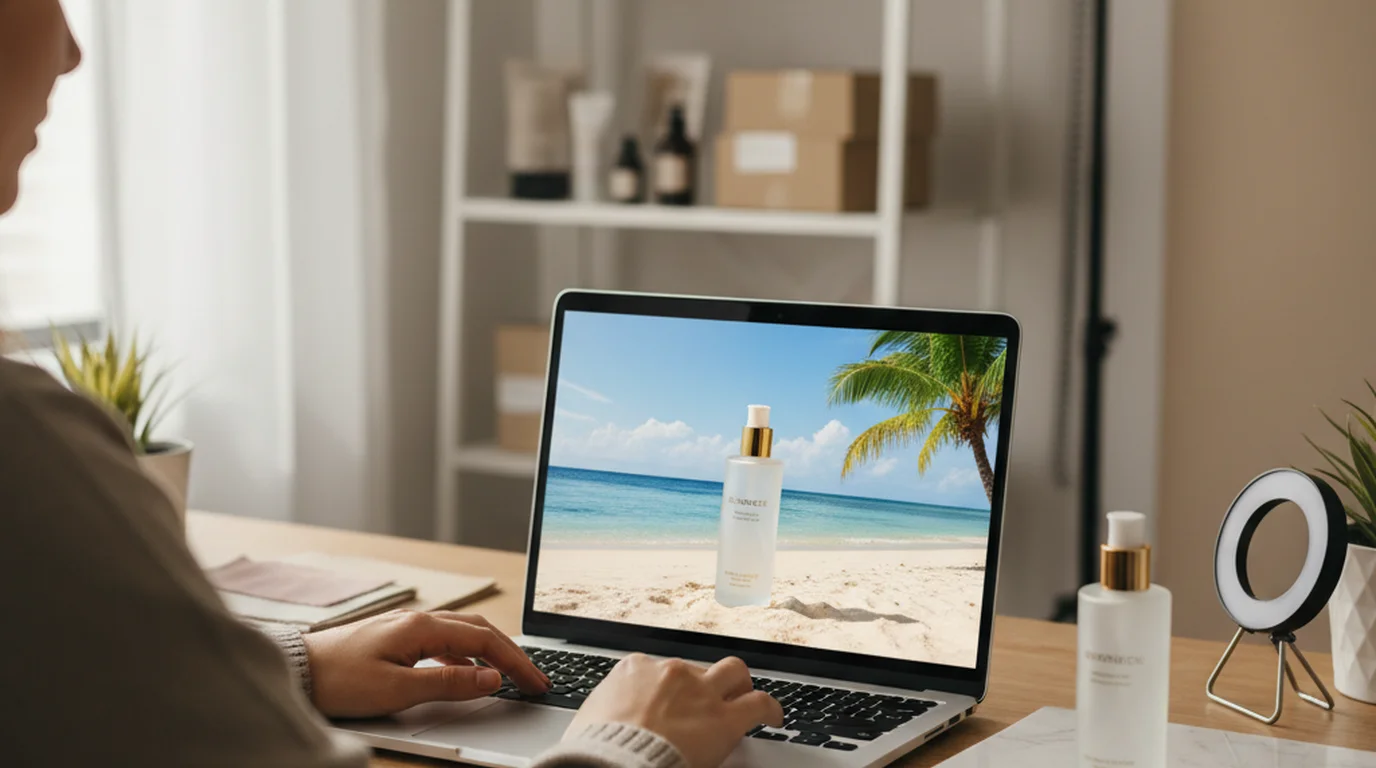
Plenty of Shopify and Amazon sellers lose a full afternoon every week to background work. Photograph the product, remove the background in one tool, open Photoshop to recolour a label, jump back to a generator for a lifestyle scene, then resize four times for Amazon, Shopify, Instagram and email. Five tools, four exports, dozens of file versions. The editable canvas inside Playyy's AI Image Editor collapses that chain into one upload.
This guide covers the practical workflow for changing picture backgrounds on product photos, the difference between background removal, background replacement, and full canvas refinement, and how to ship marketplace-ready images for every channel from a single source file.
Direct answer. To change a picture background for product photos, upload the image to an AI editor, isolate the product onto its own layer, and either generate a new background by text prompt or choose a preset scene. A good workflow also lets you recolor labels, fix shadows, and outpaint the canvas for every channel — all without re-uploading or switching tools.
Quick answer (featured-snippet block): To change the background of a picture for product photos, upload the photo to an AI image editor like Playyy, click the background to remove it, then either generate a new scene by text prompt or pick a background preset. Keep the product on its own layer so you can also recolor it, edit labels, and outpaint the canvas wider for ad ratios. The full sequence takes 30–60 seconds per image and produces marketplace-ready output without Photoshop.
Background Removal vs Background Replacement vs Full Canvas Refinement
These three things sound similar but solve different problems, and most sellers conflate them.
Background removal isolates the product against transparency. The output is a PNG you drop into a design tool. This is what most "free background remover" tools give you — useful, but only the first 20% of the actual job.
Background replacement drops a new scene behind the isolated product. A bottle that was on a kitchen counter is now on a marble surface, a beach, or a brand-color gradient. Output is a finished JPG. Two tools, two exports if your remover and your background generator are separate.
Full canvas refinement is what ecommerce listings actually need. The background changes, but you also recolor the product, edit a flavor name on the label, fix a scuff on the cap, soften the shadow to match the new light angle, and outpaint the canvas from a square to a 9:16 Story. Five distinct edits, all happening to the same image.
The previous generation of tools — background removers, scene generators, AI image makers — each handled one slice. Stacking them together meant losing fidelity at every export, and the product layer rarely stayed editable across the chain.
Deep Dive: How to Get Clean Edges with an AI Background Remover
Why Sellers Need More Than a Background Swap
Some Shopify and Amazon sellers have measured this directly. One skincare brand carries 38 SKUs across moisturizers, serums, and cleansers. Each SKU needs:
- One Amazon main image (white background, product 85% of frame, 2000px)
- Four Amazon secondary gallery images (lifestyle, ingredients, scale reference, packaging detail)
- One Shopify hero image (lifestyle, 2048px square)
- One Shopify product page secondary (white)
- Three Instagram variants (1:1 feed, 4:5 feed, 9:16 Story)
- One email banner (1200x600 wide)
That is 10 images per SKU, 380 images per catalog refresh. At 15 minutes per image in the old multi-tool workflow, a refresh consumed 95 hours. Background swap alone was never the bottleneck — relighting the product to match the new background, fixing the shadow direction, recoloring the cap for the seasonal variant, and outpainting to nine aspect ratios were each separate trips through separate tools.
The New AI Image Editor: Remove, Replace, Refine in One Canvas
Playyy's AI Image Editor is the upgrade that fixes the chain. Playyy already had the AI Image Generator, Background Remover, and Object Eraser as separate tools. The editor combines them onto one editable canvas with layers, inpainting, outpainting, restyling, recoloring, and text editing — the things ecommerce sellers actually need after the background is gone.
Concretely, what this changes for product photo workflows:
- The product stays on its own layer after background removal. Recolor it, scale it, reposition it, edit the text on the label — none of those edits touch the background.
- Background replacement is a prompt or a preset. Generate "wet marble tabletop with soft window light from the left" and the new background drops behind the product. The shadow guide updates to match.
- Inpaint fixes product flaws in place. A scuff, a dust speck, a misaligned cap — paint over it with a short prompt and the editor reconstructs that section. No clone-stamp surgery.
- Outpaint extends the canvas. Start with a square shot, extend the canvas right and left, and the editor generates plausible scene continuation. One source image becomes a 1:1, a 4:5, a 9:16, and a 1200x600 banner.
- Text edit changes labels. Swap "Vanilla" for "Lavender" on a packaging label without exporting to a vector tool. Useful for seasonal variants and A/B test creative.
The practical effect: the same single upload now produces all 10 channel variants, with the product detail edits applied once and inherited by every variant.
The 7-Step Ecom Workflow: Raw Upload to Marketplace-Ready
Many Shopify and Amazon sellers follow a version of this loop weekly. The exact tool clicks have changed; the sequence has not.
- Upload the raw product shot. Best results come from a sharp source at 2000px+ on the longest side, lit with one main soft light and one fill. Even a clean smartphone shot in window light works if the focus and exposure are right.
- Remove the background. Click the background area in Playyy's AI Image Editor; the product is isolated to its own layer in 3–5 seconds. Check the edge at 200% zoom — refine hair, transparent sections, or reflective edges with the brush tool only where needed.
- Refine the product itself. This is the step the old workflow forced you to leave the tool for. Recolor a label using the edit elements tool, inpaint-replace any scuffs or stray reflections, edit packaging text for the current variant, and apply any restyle (matte finish, glossier finish, brushed metal cap).
- Choose the new background. For Amazon main images, pick the white preset. For Shopify hero and Instagram, generate a lifestyle scene by prompt — name the surface, the light direction, and one environmental cue ("wet marble tabletop with soft window light from the left, eucalyptus sprigs out of focus in the background"). For seasonal campaigns, generate three scene variants in one pass and pick the strongest.
- Match shadow to new light. Adjust the shadow direction, softness, and opacity so the product looks anchored in the new scene rather than pasted on. A 25–35% opacity soft shadow under the product is usually right for studio scenes; outdoor scenes need a longer, harder shadow.
- Outpaint for every channel ratio. Use the image expand tool to extend the canvas. Square 1:1 for marketplaces, 4:5 portrait for Instagram feed, 9:16 vertical for Stories and Reels, 1200x600 wide for email banners. The editor fills in plausible scene continuation rather than stretching the existing image.
- Export per channel. JPEG 2000px for Amazon main, WebP at 85% for Shopify product page and email, PNG with transparency for any asset that needs to sit on a colored email background. The export presets in the editor handle resolution and format selection per channel.
This sequence runs in 6–9 minutes per SKU once you have the lifestyle prompt locked. For the 38-SKU skincare catalog, the full refresh dropped from 95 hours across the old tool chain to roughly 5 hours in the new editor — a 94% time reduction with the same or better visual quality.
Citation Capsule: A 2023 Shopify research summary on product page imagery reported that listings with at least one lifestyle context image converted meaningfully higher than listings using only white-background shots, and that page bounce rates dropped when the lifestyle image was positioned in the first two gallery slots. The takeaway for sellers: ship the white-background main image for marketplace compliance, but never stop there. See Shopify's research on product photography.
Per-Channel Sizing: Outpaint Once, Ship Everywhere
The single biggest underused feature of the new editor is outpainting for channel sizing. The image you shot is almost never the ratio every channel needs. Old workflow: shoot wide, crop down. New workflow: shoot tight, outpaint wider.
Here are the sizes that actually matter for product photos in 2026:
- Amazon main image: 2000x2000 square, pure white (RGB 255,255,255), product fills 85% of the frame, JPEG. Style-guide compliance is non-negotiable — Amazon suppresses listings that fail it.
- Amazon secondary gallery images: 2000x2000 square, lifestyle or white permitted. Use slots 2–7 for context, scale reference, ingredients, packaging detail, and bundled-set shots.
- Shopify product page: 2048x2048 minimum, square, lifestyle or white. Shopify recommends the first image be the most evocative — for most categories that means a lifestyle hero, not the white-background shot.
- Shopify hero / collection banner: 1920x1080 or wider — outpaint your square hero shot horizontally.
- Instagram feed: 1080x1350 portrait (4:5) — the most space-efficient ratio in feed.
- Instagram Stories and Reels cover: 1080x1920 vertical (9:16) — outpaint upward and downward from a square source.
- Meta ads (Facebook + Instagram): 1080x1080 square or 1080x1350 portrait.
- Email banner: 1200x600 wide.
Inside the editor, the image expand tool handles each ratio. The product layer locks in position; the canvas extends and the editor generates plausible scene fill. For lifestyle scenes with a clear surface and depth cue, outpainting is reliable for 30–50% canvas extension. Beyond that, generate the scene fresh at the target ratio rather than over-extending.
Citation Capsule: Bigcommerce's 2024 ecommerce benchmark report noted that mobile commerce now drives the majority of product detail page sessions across the platform's merchants, with vertical-format imagery (4:5 and 9:16) outperforming square crops on mobile-first traffic. Outpainting from a single source to channel-specific ratios — rather than reshooting per channel — is the practical implementation. See Bigcommerce ecommerce data and trends.
Common Background-Swap Mistakes That Hurt Conversion
Sellers hit the same five mistakes on the way into a new background workflow. None of them are technical — they are decisions.
1. Skipping shadow matching. A product cut from a softbox studio and dropped onto a beach scene with no shadow update looks pasted-on. The eye reads the mismatch before the conscious mind does. Adjust shadow angle and softness to match the new scene's light source every time.
2. Over-stylized backgrounds. Generative tools can produce extremely detailed backgrounds. For ecommerce, simpler usually outperforms — the product needs to be the focal point. Marble tabletop, soft linen, single-color gradient with a soft window light. If the background pulls attention from the product, regenerate.
3. Inconsistent backgrounds across a catalog. Each SKU shot against a different background creates visual chaos in the grid view. Pick 2–3 background treatments per category and reuse them across SKUs in that line. The collection page becomes a coherent brand experience.
4. Forgetting marketplace compliance. Amazon's main-image style guide is enforced algorithmically. Off-white backgrounds, products under 85% of the frame, accessory props, additional text, or watermarks will get the listing suppressed. Keep the marketplace main image strictly compliant; the secondary slots are where staged scenes belong.
Deep Dive: Lifestyle Product Photography at Home (No Studio)
5. Outpainting too aggressively. Pushing a canvas from 1:1 to 9:16 by outpainting alone can produce visible artifacts in the extended region. For large ratio changes (more than 50% canvas extension), generate the scene fresh at the target ratio with the same product layer composited in.
For deeper background-removal technique, including handling complex edges and transparent products, see the complete background remover guide. For full product-shoot replacement workflows, see AI photoshoots for creators.
When You Still Need a Photographer
For honesty: the AI editor does not replace every shoot. For products where micro-detail matters (luxury watches, jewelry, technical hardware with engraved markings), a properly lit macro shot still beats AI restyling. For brand campaigns built around a specific human model or location, the human shoot is the campaign. The editor is the multiplier on the shot, not the substitute for it.
The decision rule: shoot the hero product image once, with proper lighting and resolution. Then use the editor for every downstream variant — channel sizes, lifestyle scenes, seasonal variants, color swaps, label edits, and ad creative. One shoot, dozens of finished assets.
Ship the Background Change
Background swapping is no longer the entire job — it is the first step of an integrated edit that includes recoloring, label updates, shadow matching, and per-channel outpainting. The new AI Image Editor is the first tool that handles all of those steps on one editable canvas, with the product layer preserved across every edit.
Open Playyy's AI Image Editor and try the full sequence on a real product image: remove the background, generate a new scene, refine the product itself, and outpaint to your three most important channel ratios. The output is marketplace-ready and the workflow is short enough to run weekly.
Complete Guide: Ecommerce Product Photography: The Complete Guide

James Walker
I help Shopify and Amazon sellers improve product images, promotional banners and ad creatives. I focus on practical visual improvements that help products look more credible and conversion-ready — no design jargon, just what works.
Frequently asked questions
Upload the product image to Playyy's AI Image Editor, click background to remove the original scene, then either generate a new background by text prompt or pick a preset surface (marble, linen, beach, studio gradient). The product stays editable on its own layer — you can resize it, adjust shadow direction to match the new light source, and outpaint the canvas wider if you need an ad-format ratio. The whole change-background sequence takes 20–40 seconds per image for standard product types, with no Photoshop or layer compositing required.