How to Remove Backgrounds from Product Photos for Free
 James Walker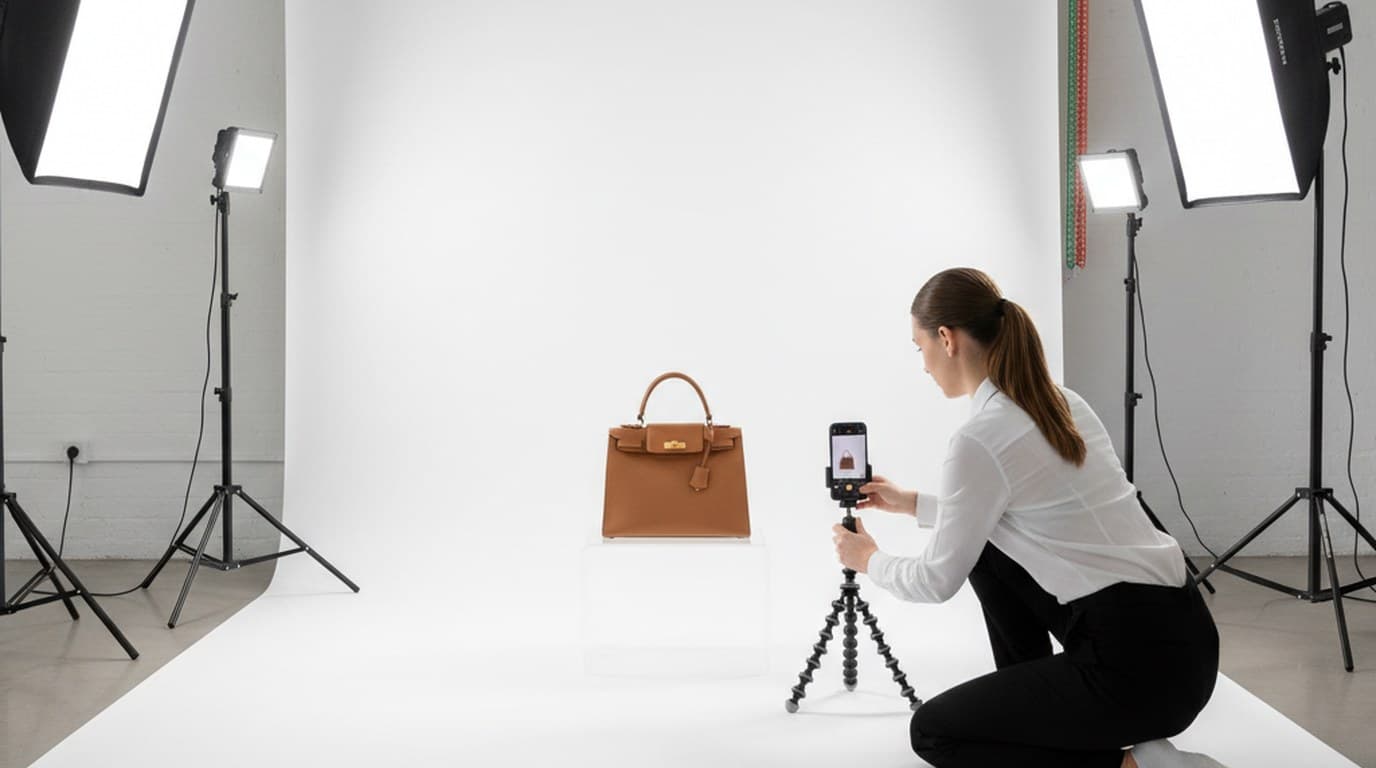
If you're selling on Amazon, Shopify, Etsy, or eBay, clean product backgrounds aren't a nice-to-have — on Amazon they're a hard requirement for main images, and on every marketplace they shape whether shoppers trust a listing enough to buy.
Amazon's listing policy is explicit: main product images must have a pure white background (RGB 255, 255, 255). Images that don't meet that standard get suppressed in search results. That means no impressions, no clicks, no sales — regardless of your price, your reviews, or your ad budget. And on Etsy and eBay, marketplace-standard images don't just convert better — they signal professionalism in categories where buyers are choosing between dozens of near-identical listings.
The real cost of bad product images isn't just lower conversion rates. It's suppressed rankings, lost ad impressions, and the compound effect of every buyer who bounced because your product looked less credible than a competitor shooting against a clean white background. A cluttered background makes a product look like it was photographed at home, and on a marketplace where every competitor shoots against clean white, that reads as less credible before a shopper has assessed the product itself. Across a catalogue of 50 listings, that impression compounds.
The practical problem: most sellers don't have a photography studio, and even those who do can't set one up every time they add a variant, update a listing, or shoot a seasonal product on short notice. That's exactly what AI background removal solves. Here's how to remove the background from product photos in minutes using free AI tools — no Photoshop, no studio, no design skills required.
Direct answer. To remove the background from a product photo for free, upload your image to an AI background remover like Playyy, let the AI detect and isolate the product automatically, review the edges at 100% zoom for any fringing or clipped details, then export as a white-background JPG for Amazon or a transparent PNG for use in design tools. The full process takes a few minutes for most standard product types.
Why Your Product Photos Need Clean Backgrounds
There are three concrete reasons to get this right before the how-to, because they affect which method is worth your time:
Amazon requirements: Main product images must have a pure white background (RGB 255, 255, 255). Images that don't meet this standard get suppressed in search results — which means no impressions, no clicks, no sales, regardless of how good your product is.
Conversion rates: A clean main image helps shoppers compare products rather than photographs — but it isn't sufficient on its own. Baymard Institute's product-page research finds that 42% of users try to gauge a product's scale and size from its images, while 28% of sites provide no "in scale" image at all. A white-background cutout can't answer the size question, so the strongest listings pair it with a shot showing the product in use or in hand.
Ad creative requirements: Shopping ads reuse your product images, and Google Merchant Center rejects product images with watermarks, borders or promotional overlays (image requirements). A clean cutout on a white or light neutral background is the simplest way to stay inside those guidelines across channels.
Step-by-Step: Remove Background from Product Photos with AI
This is the exact workflow you'd use with Playyy's background remover. For a standard product photo the whole process — from upload to download — takes a few minutes.
Step 1: Prepare your photo
You don't need a professional camera. A modern smartphone in good natural light produces images with enough resolution and edge contrast for AI detection to work accurately. Before you shoot, place your product on a flat, non-reflective surface and use indirect natural light from a window — not direct sunlight, which creates harsh shadows that complicate edge detection.
The most important pre-shoot decision: shoot against a light background even if you're going to remove it. A pale grey or white surface gives the AI cleaner edges to work with than a wooden table, a dark surface, or a patterned background. Contrast between product and background is what the AI needs to do its job accurately.
If you're working with existing photos that have complex backgrounds, they'll still work, but clean-background shots produce better results with less touch-up.
Step 2: Upload to Playyy's background remover
Go to Playyy's background remover and upload your photo. Drag the file into the upload zone or click to browse from your device.
The AI processes the image immediately. For most product photos, the background is removed within seconds. The tool uses object detection to identify the main subject and isolates it from everything behind it.
Step 3: Review the edges at 100% zoom
This step is what separates a professional-looking result from a rushed one. After the automated pass, zoom in to 100% and inspect the perimeter of your product — especially corners, thin elements, and areas where the product colour is similar to the former background.
For most products — packaged goods, clothing on flat lay, electronics, accessories — the auto-detection is accurate enough to use directly. Look specifically for:
- Halo effects: a faint outline of the original background colour still visible around the product edge
- Clipped elements: thin parts of the product (a cable, a strap, a hang tag) that got removed with the background
- Missing fill: areas inside the product that were incorrectly detected as background (common with mesh, lace, or perforated materials)
Use the brush editor to restore any clipped areas or remove any remaining background fragments. For most products this is a quick pass; complex products (see the section below) take longer.
Step 4: Choose your output format and background
Your output choice depends on where you're using the image:
- Transparent PNG: For placement into your storefront template, ad creative, or design software where you'll apply your own background
- White background JPG: For Amazon main images, Shopify product pages, and any marketplace that requires a filled background — export with white fill at JPEG quality 90–95
- Custom or lifestyle background: Use Playyy's background replacement tools to place your cut-out onto a generated lifestyle scene — a kitchen counter, a wooden shelf, an outdoor surface — without a second photoshoot
Step 5: Export at the correct resolution
Match your export resolution to the platform you're uploading to. Amazon needs at least 1000px on the longest side for zoom (2000px gives more headroom). Shopify's recommended product image size is 2048 × 2048px for square products. If your source image is lower resolution than required, use Playyy's image upscaler before or after background removal to bring it up to spec.
Platform Background Requirements: Amazon, Shopify, Etsy, and eBay
Each marketplace has different requirements for product image backgrounds. Getting these right isn't just about compliance — it's about appearing in search results and meeting the visual standard buyers expect on each platform.
| Platform | Background colour | Product fill | File format | Min resolution | Max file size |
|---|---|---|---|---|---|
| Amazon | Pure white (RGB 255,255,255) | ≥ 85% of frame | JPG, PNG, GIF, TIFF | 1000px longest side (2000px recommended) | 10MB |
| Shopify | No strict requirement; white or neutral recommended | No strict fill % | JPG, PNG, GIF, WebP | 2048 × 2048px recommended | 20MB |
| Etsy | No strict requirement; clean/white recommended for main | No strict fill % | JPG, PNG, GIF | 2000px shortest side recommended | Under 1MB recommended |
| eBay | White or light neutral recommended; no strict policy | No strict fill % | JPG, PNG, GIF, TIFF | 500px minimum (1600px recommended) | 12MB |
Notes on Amazon specifically: Amazon checks main product images automatically and can suppress a listing until the image is fixed. The most common suppression triggers are: visible background colour that isn't pure white (including off-white, cream, and grey tones), product filling less than 85% of the frame, and watermarks or text on the image. When exporting for Amazon, always export with the white fill option rather than relying on a transparent PNG that might render differently in various browsers or upload tools.
Notes on Etsy: While Etsy doesn't enforce a white background policy, clean, high-contrast product images read clearly at thumbnail size. In crowded categories (jewellery, skincare, apparel accessories), a white or very light background helps the main thumbnail stand out from styled shots around it.
Product Types That Are Hardest to Cut Out (and How to Handle Them)
AI background removal is highly accurate for most ecommerce products, but certain product types are genuinely difficult. Here's what the AI struggles with and the specific workaround for each.
Glass and transparent products (bottles, glassware, acrylic items)
The fundamental problem: the background shows through the product. The AI is trying to separate "product" from "background" but in transparent areas they're visually the same. This causes incomplete removal inside the transparent sections and sometimes edge bleeding.
Best approach: shoot against pure white to begin with. When the background behind a glass bottle is white and the light is controlled, the AI has much less ambiguity to deal with. After removal, manually clean up any remaining grey or coloured contamination inside transparent sections using the erase brush. For products where perfect transparency is critical (perfume bottles, stemware), accept that a small amount of manual refinement is unavoidable.
Jewellery and metallic products
Jewellery presents two problems: intricate detail (fine chains, prong settings, small stones) and high reflectivity. Reflective metal surfaces pick up colour from whatever surrounds them during the shoot, which the AI reads as background contamination.
Shoot against white or very light grey, and ensure your light source doesn't create coloured reflections in the metal. After the automated pass, inspect the edges of stones, the ends of chains, and clasp hardware at 100% zoom. These are the areas most likely to have clipping or halos.
Fur, hair, and fibrous products (wigs, brushes, pet products with animals)
The fringe area — where individual hairs or fibres separate from the background — is where AI tools have the hardest time. The boundary between hair and background is not a clean line; it's thousands of semi-transparent pixels.
Use a hair or edge refinement brush if the tool offers one. Work around the perimeter in 1–2 passes, keeping the brush at the edge of the hair rather than over it. For product photography where an animal or model is in frame, this refinement step takes a few extra minutes but is still much faster than masking by hand.
White products on white backgrounds
The AI needs contrast between product and background to define the edge. When both are white, that contrast disappears. If you've already shot the photo against white, try increasing the shadow slightly in post — even subtle edge shadows can give the AI enough contrast to find the boundary.
Going forward, shoot white products against a pale blue-grey or light grey background. The AI detects the edge accurately, and you remove the non-white background to get the white product cutout you need.
Liquid products and products with liquid fill
Bottles with visible liquid (shampoo, cooking oil, beverages) have gradients and translucency that complicate edge detection. Shoot against white, ensure the liquid column is well-lit from the sides to show colour and fill clearly, and expect to do a manual refinement pass around the meniscus (liquid surface) area inside the container.
On Amazon, the white background isn't a stylistic choice — it's policy. The main product image must sit on pure white (RGB 255, 255, 255) with the product filling at least 85% of the frame, and non-compliant listings risk suppression. That makes background compliance a listing-eligibility issue rather than a design preference, which is why competitive categories all converge on the same look. The differentiation has to come from the secondary images instead.
After the Background Remove: What to Do Next
Getting the clean cutout is step one. What you do with it determines whether it actually lifts your listing performance.
For Amazon main images: white background JPG
Export your cutout directly with white fill at JPEG quality 90. Open the file and verify the background is truly RGB 255, 255, 255 — not off-white or very light grey. Most AI background removers fill with pure white, but it's worth checking with an eyedropper tool in any image editor. Resize to 2000px on the longest side before uploading.
For Shopify and direct-to-consumer storefronts: contextual backgrounds
On your own storefront, you have freedom that Amazon doesn't give you. Lifestyle images — showing the product in a relevant use context — tend to perform better for brands selling in categories where aspiration or context matters (home goods, food and beverage, beauty, outdoor gear).
Once you have a clean cutout, Playyy's tools let you place it onto a generated background that matches your brand aesthetic. Describe the scene you want — "marble kitchen surface with soft overhead light and a neutral warm background" — and the AI generates a scene you can composite your product into. This produces usable lifestyle imagery without a second photoshoot, location cost, or model booking.
For Instagram and ad creative: aspect ratio variants
Product images shot in portrait or landscape often don't work as square social crops without losing part of the product. Use Playyy's image expander to extend the canvas in whichever direction you need, filling the new background area seamlessly. This lets you take a single background-removed product shot and produce a 1:1 square crop for Instagram, a 4:5 portrait for feed ads, and a 16:9 landscape for display ads — from one source image.
For print and high-resolution use: upscaling before export
If your source image is under 2000px on the longest side — common with smartphone photos taken at default settings — use Playyy's image upscaler to bring it to 4000px or higher before exporting. AI upscaling preserves edge quality better than standard bicubic interpolation and produces sharper results at print-ready DPI (300 DPI for most print applications).
How to Shoot Product Photos That Make Background Removal Easy
The fastest background removal workflow starts before you pick up the camera. Shooting conditions that give the AI clean, high-contrast edges cut your post-processing time significantly.
Lighting setup
Indirect natural light from a north-facing window (in the northern hemisphere) produces soft, even light with minimal hard shadows. If you're using artificial light, a softbox or diffused LED panel positioned 45 degrees to the product side gives even coverage without sharp shadow edges on the background surface.
The worst lighting for background removal: direct flash (creates hard shadows at the product base), mixed light sources (produces different colour temperatures across the image), and direct sunlight (creates harsh, high-contrast shadows that the AI sometimes reads as product edges).
Background surface choices
For most products, a large sheet of matte white poster board is the best shooting background. It's inexpensive, replaceable, and gives the AI the contrast it needs. Keep it flat — buckles and texture in the background surface create shadow gradients that complicate edge detection.
For white or very light products, switch to a pale blue-grey or light grey background. This provides enough contrast for the AI to find the product boundary and is still easy to remove cleanly.
Product placement and contrast
Avoid placing products directly on the background surface without any separation — flat objects like trays, books, or cutting boards shot directly on white tend to blend at their lower edge. Use a small product stand or props to lift the product slightly, creating a clean shadow line underneath that the AI can use as a boundary.
Keep the product centred and leave margin around it — the product should fill 60–75% of the frame in your source shot. This gives you room to crop and resize for different platform requirements without losing product detail.
AI Background Remover vs Manual Masking in Photoshop: The Real Comparison
If you've been using Photoshop for background removal, or you're considering whether AI tools are worth switching to, here's an honest comparison across the dimensions that matter for ecommerce volume work.
Time per image
AI background remover: seconds for the automated pass, plus a few minutes of manual refinement on complex products.
Photoshop manual masking (pen tool + refine edge): many minutes per image for a professional-quality result, and considerably longer for complex subjects (hair, fur, glass).
For a seller adding new SKUs every week, that gap adds up to hours saved per month.
Output quality
AI: Excellent for most standard ecommerce products. For simple product shapes with good contrast, AI output is hard to tell apart from manual masking. For complex edge cases (transparent products, fine hair fringe, intricate jewellery), AI gets you most of the way there and manual refinement covers the rest.
Photoshop: Higher ceiling for difficult subjects when done by a skilled operator. For high-end catalogue work or products where every pixel matters, a skilled Photoshop masker can produce results that current AI tools can't match. But that ceiling only matters if you have the skill and time to reach it.
Cost
AI background remover: Free to low monthly cost for most use cases. Playyy's free plan includes daily bonus credits, and paid plans start at $18/month for higher volume.
Photoshop: an ongoing Adobe subscription, plus your time, plus the learning curve if you're not already proficient.
Outsourced Photoshop masking (e.g. freelance or clipping service): charged per image, with prices rising for complex subjects. At catalogue scale this adds up quickly.
Learning curve
AI: Minimal. Upload, review, download. Most sellers are productive within minutes of first use.
Photoshop: The pen tool and refine edge workflow takes months to become genuinely proficient at. Quick-selection tools are faster but produce lower quality edges than a skilled manual mask.
When to use each
Use AI background removal as your default workflow for all standard product photography — packaged goods, electronics, apparel flat lay, accessories, most beauty products. The speed and quality are appropriate for everything from listing images to ad creative. Apparel has a second step after the cutout: a flat lay still needs a body shape before it reads as a garment on a listing.
Use Photoshop manual masking (or outsourced clipping) for hero images of your most complex products — high-end jewellery catalogues, transparent glass vessels for premium brands, or any image where you're going to large-format print and edge quality under magnification matters.
File Formats and Export Settings for Marketplace Product Images
Getting the file format and resolution right is the final step. Wrong settings here can cause upload failures, quality loss, or marketplace policy violations.
PNG with transparency
Use PNG when you need to preserve the transparent background for use in design software, storefront templates, or anywhere you'll be compositing the product onto a different background. PNG is lossless — no compression artefacts — but produces larger files.
PNG is not appropriate for direct upload to Amazon as a main product image, because the transparency layer renders differently across browsers and device displays. Always fill with white before uploading to Amazon.
JPG for marketplace uploads
For Amazon, Shopify, Etsy, and eBay product page images, export as JPG at 90–95% quality. This balances file size with visual quality. At quality 90, a 2000 × 2000px product image usually stays within marketplace size limits; check Etsy's recommendation to keep files under 1MB.
The background fill should be pure white (RGB 255, 255, 255) before JPG export. Most AI background removers give you this option directly — look for a "white background" export option rather than transparent.
Resolution guide by use case
- Amazon main images: 1000px or more on the longest side enables zoom; 2000px is a safer target
- Shopify product images: 2048 × 2048px for square products; maintain aspect ratio for non-square
- Etsy listing images: 2000px minimum on longest side
- Instagram feed (square): 1080 × 1080px (Instagram displays feed images at up to 1080px wide and compresses uploads)
- Facebook and Instagram ads: 1080 × 1080px (square), 1080 × 1350px (4:5 portrait), 1200 × 628px (1.91:1 landscape)
- Google Shopping: 500 × 500px minimum; around 1500 × 1500px recommended
DPI considerations
DPI (dots per inch) matters for print — not for web or marketplace uploads. For digital use, what matters is the pixel dimensions, not the DPI metadata. A 2000 × 2000px image at 72 DPI and the same image at 300 DPI look identical on screen. For print use (packaging inserts, display materials), export at 300 DPI at the physical output size you need.
If you're using product images for print and your source is lower resolution than required, Playyy's image upscaler can increase pixel dimensions while preserving sharpness — often allowing you to print larger than the source image's native size would allow.
The bottom line: there's no reason to ship product listings with distracting backgrounds or to pay for studio time when free AI tools handle the removal in seconds. Start with Playyy's background remover, get your Amazon and Shopify images compliant, and then use the same workflow to generate lifestyle variants for your ads and social posts. For images that need to work across different platforms and aspect ratios, Playyy's image expander handles the canvas extension, and the upscaler takes care of resolution requirements for print and high-DPI displays.
Complete Guide: Background Remover: The Complete Guide (2026)
Complete Guide: Ecommerce Product Photography: The Complete Guide

James Walker
I help Shopify and Amazon sellers improve product images, promotional banners and ad creatives. I focus on practical visual improvements that help products look more credible and conversion-ready — no design jargon, just what works.
Frequently asked questions
Upload your product photo to a free AI background remover like Playyy. The AI detects the product edges automatically and removes the background in seconds. Download the result as a PNG with a transparent background or save directly with a white background for Amazon and Shopify listings.