How to Make a Professional Profile Picture (With or Without a Photographer)
 Claire Dubois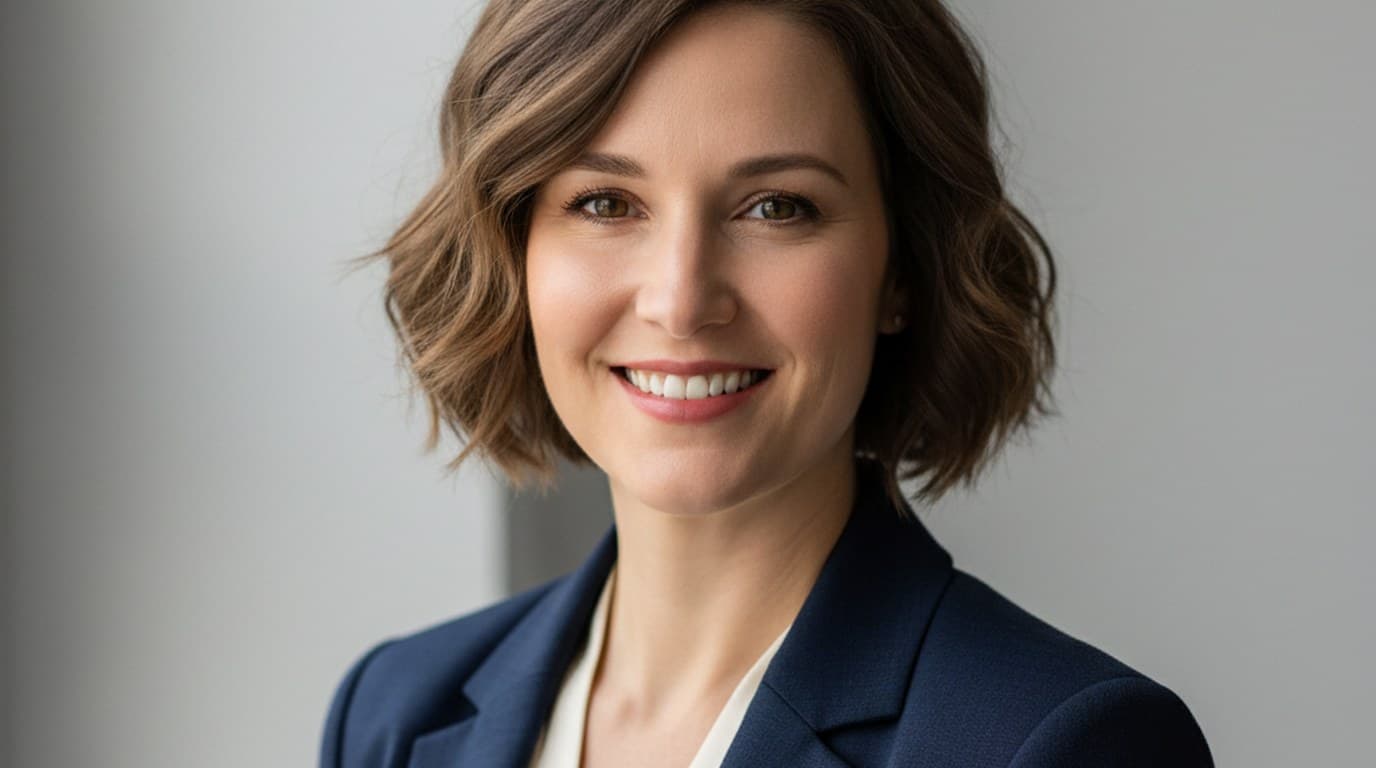
Your profile picture is the first thing a recruiter, client, or collaborator sees before they read a single word you've written. Profile photos are one of the most consistently underestimated assets in personal and professional branding.
The good news: making a great profile picture doesn't require a photographer, a studio, or a significant budget. What it requires is understanding four things — framing, lighting, background, and expression — and then having the right tools to execute or fix any of them.
Direct answer. A professional profile picture shows your face at 60–70% of the frame, uses soft window light or equivalent, has a clean background, and captures a relaxed, direct expression. You can achieve this at home with a phone and a window, or generate one entirely with Playyy's AI image generator — free, no photoshoot required.
What Makes a Great Profile Picture: The Four Fundamentals
Before getting into tools and tactics, it helps to understand why certain profile photos work and others don't. The failures almost always come down to the same four problems.
Framing: Your Face Should Fill the Frame
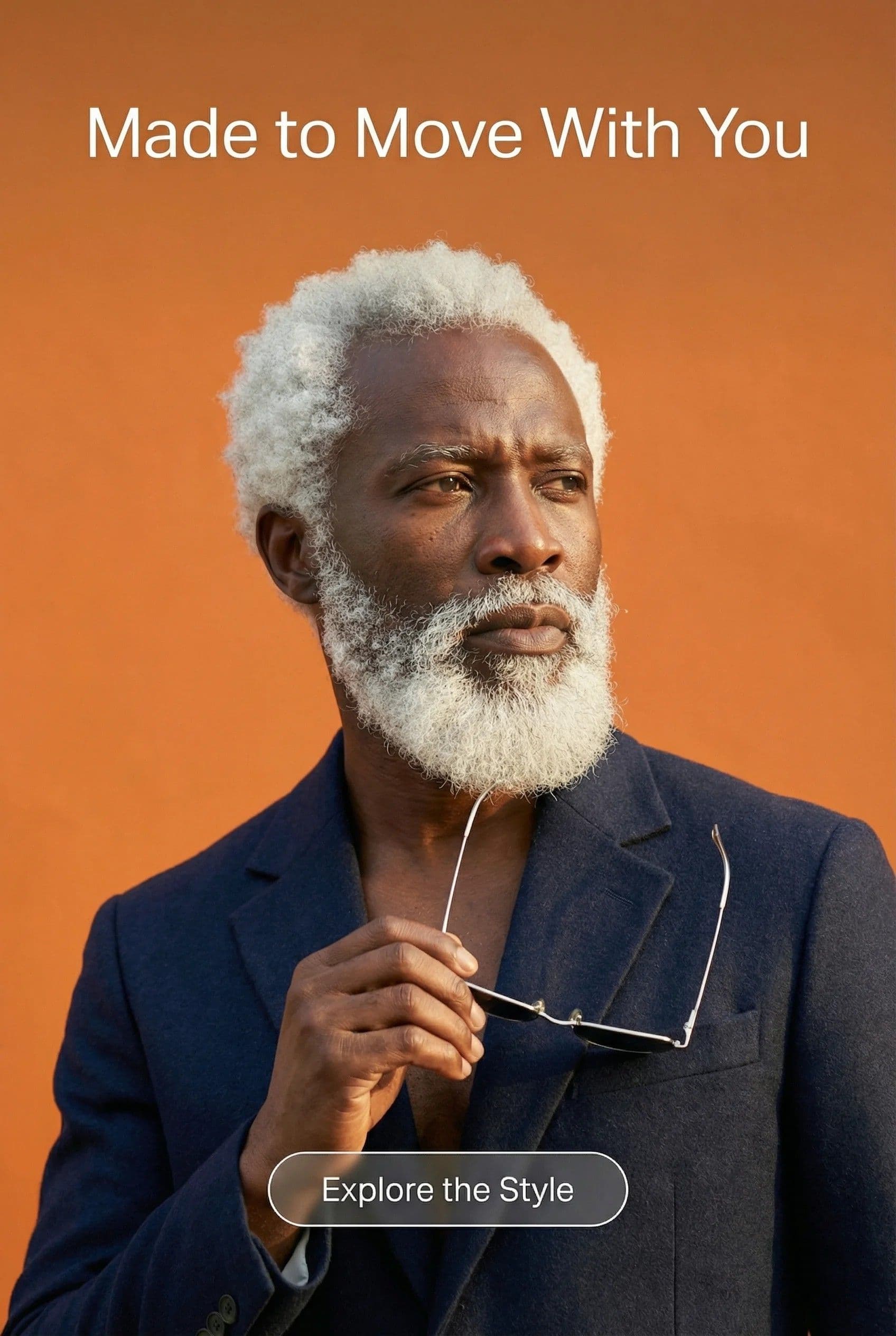
The most common mistake is shooting from too far away. A profile picture isn't a full-body or even a waist-up shot — it's a headshot. Your face should occupy roughly 60–70% of the frame, with the top of your head close to (but not cropped by) the upper edge.
The crop that works on every platform is a tight bust shot: from the top of your head to just below your shoulders. This leaves enough context that you don't look claustrophobically close, while ensuring your face is recognizable at the small sizes platforms actually display your photo.
At LinkedIn's 400×400px display size — or Instagram's 320px circle — a full-body shot reduces your face to a blur. That's not a profile picture; it's an avatar.
Lighting: Soft and Directional, Not Flat or Harsh
Lighting is the single biggest technical differentiator between a photo that looks professional and one that looks like a selfie. Two rules cover most situations:
Avoid flat, front-on light. Overhead lights, ring lights placed directly in front of you, and flash all flatten your face and eliminate the subtle depth that makes a photo look three-dimensional. The result is that slightly unnatural, overly smooth look that marks most DIY headshots.
Use a large window at 45 degrees. Position yourself so a large window is to your left or right, angled toward your face. This creates soft, directional light — the kind that casting directors and portrait photographers spend thousands of dollars on equipment to replicate. It creates gentle shadows that give your face structure, and the natural color temperature reads as warm and genuine.
Stay out of direct sunlight. The goal is the diffused light that comes through a window on a bright-but-overcast day, or from indirect sun.
According to LinkedIn, simply having a profile photo results in up to 21x more profile views and 9x more connection requests. Once you have one, the difference between a usable photo and a professional one is largely lighting.
Background: Simple, Uncluttered, Intentional
Your background should support the subject — which is your face — not compete with it. The backgrounds that derail professional profiles most often:
- Busy office environments with visible clutter, cables, or coworkers
- Outdoor backgrounds with high contrast or movement (trees, crowds, bright skies)
- Blank white walls photographed badly, creating flat or blown-out results
- Patterned walls or wallpaper that draws the eye away from the subject
The backgrounds that consistently work: soft-focus greenery at distance, matte painted walls in neutral tones, and simple solid-color environments. If your actual background isn't cooperating, tools like Playyy's background remover let you replace it entirely in one click — clean white, soft grey, or any color you choose.
Expression: Genuine Over Polished
The most technically perfect profile photo fails if the expression is stiff or inauthentic. The expressions that read well on profile photos are relaxed, with a slight smile that reaches the eyes — not a forced grin, not a blank stare.
The fastest way to get a natural expression: take 15–20 frames in rapid succession. Don't try to hold a pose. The frames that work are almost always the ones between the "photo face" and a natural laugh.
How to Take a Professional Profile Picture at Home
You don't need a photographer. This method takes about 20 minutes and works with any modern smartphone.
What you need: a phone with a front or rear camera, a tripod or stable surface, and a room with a large window.
Step 1: Find the right window. You're looking for a room with a large window that doesn't get direct afternoon sun. Morning light from an east-facing window is often ideal — soft, warm, and directional.
Step 2: Position yourself. Stand or sit 2–3 feet from the window, turned at a 45-degree angle toward it. Your face should be angled toward the light, not looking directly into it. If you're using the rear camera (better quality on most phones), set a 10-second timer and prop the phone at face height.
Step 3: Choose a background. The wall opposite the window is usually your cleanest option — it'll be lit softly by the reflected light from the window and won't be overly bright. If the wall has marks or clutter, hang a sheet or large piece of card behind you. Neutral grey, white, and warm beige all work.
Step 4: Shoot 15–20 frames. Use burst mode if your phone has it, or set a timer and take multiple shots. Move slightly between frames. You're looking for sharp focus, both eyes fully open, and a natural expression.
Step 5: Edit the best frame. At minimum, adjust exposure if needed and straighten the crop. For more significant changes — a different background, better lighting, or a more polished finish — use an AI photo editor that lets you refine any element with a text prompt.
Profile Picture Sizes for Every Platform
Getting your profile photo to look sharp on every platform means understanding what each platform actually does to the image you upload. Upload your highest-resolution version and let the platform resize — but know what to target.
| Platform | Display Size | Upload Recommendation | Shape |
|---|---|---|---|
| 400 × 400 px | 800 × 800 px minimum | Circle | |
| 320 × 320 px | 1080 × 1080 px | Circle | |
| Twitter / X | 400 × 400 px | 800 × 800 px | Circle |
| 176 × 176 px (desktop) | 800 × 800 px | Circle | |
| Google / Gmail | 250 × 250 px | 500 × 500 px | Circle |
All major platforms display profile pictures as circles, which means the corners of your image get cropped. When you're framing your shot, make sure your face isn't too close to any edge — platforms center the crop, but a tight composition with no margin can result in a cut-off forehead or chin.
For LinkedIn specifically: the profile photo displays at 400×400px on your public profile page, but appears much smaller in search results and messaging (roughly 48–72px). Your expression and framing need to work at both sizes. Always check your photo by zooming out until it's thumbnail-sized — if it still reads as a clear, approachable face, it passes.
For a quick reference on full platform specs beyond profile photos, the social media image sizes guide covers every format for 2026.
How to Make a Profile Picture With AI (No Photoshoot Needed)
If you don't have good source photos, or you want a fully generated professional look without a camera session, Playyy's AI image generator lets you create portrait-style headshots from a text prompt — free.
Generating an AI profile picture from scratch:
Describe the look you want: the style, background, expression, and clothing. Be specific. "Professional headshot, woman in her 30s, light grey background, natural smile, business casual blazer, soft studio lighting" produces usable results. The more visual detail in your prompt, the closer the output is to what you need.
Editing an existing photo with AI:
If you have a decent photo but something's off — the background is busy, the lighting is flat, the expression is slightly stiff — Playyy's AI editor lets you fix individual elements with a text prompt. "Replace the background with a soft grey gradient," "Warm up the lighting," or "Remove the harsh shadow on the left side of the face" all work as instructions.
Using style transfer:
Playyy's style transfer applies a professional aesthetic to any photo — useful when you have a technically decent shot but it reads more casual than professional. Think of it as adjusting the visual register of an image without changing the subject.
Background removal:
The background remover is the fastest tool for the most common problem: a good photo with a bad background. Upload, click once, and choose your replacement color. The result at LinkedIn's 400×400px display is clean.
AI editing can rescue photos taken in challenging conditions — bad overhead lighting, cluttered backgrounds — though a sharp, in-focus source still gives the best result. For a detailed comparison of AI headshot quality vs. professional photography, the AI headshot generator guide covers this in depth.
The LinkedIn Profile Picture: What Recruiters Actually Look For
LinkedIn is the context where a profile picture does the most professional work, so it's worth treating separately.
The practical checklist for a LinkedIn profile picture that doesn't work against you:
- Clear face, direct gaze. Avoid looking away from the camera. Eye contact signals confidence and approachability.
- Business casual at minimum. The standard in 2026 is business casual for most industries — blazer or structured top, no graphic tees unless your field genuinely expects casual. When in doubt, dress one level above what you'd wear to the office.
- Neutral or soft background. Avoid branded office environments unless they're genuinely polished. A clean neutral background removes any visual noise that competes with the impression you're trying to make.
- No sunglasses, hats, or strong filters. These all reduce trust signals. LinkedIn is a professional context; a photo that obscures your face makes it harder for people to recognize you.
- Solo shot. Your profile photo should only include you. Cropped group photos are immediately recognizable as such and read as an afterthought.
The photo size to upload is 800×800px minimum. LinkedIn will compress it, but starting from a larger file preserves quality at the circle crop and display sizes the platform uses.
The Bottom Line
A professional profile picture is achievable without a photographer, a studio, or expensive software. The fundamentals — tight framing, window light, clean background, natural expression — are free. The tools to fix what a home setup can't fully control are also free, at playyy.ai.
If you're starting from scratch and don't have source photos worth working with, generate one. If you have a decent photo that needs refinement, edit it. Either way, there's no reason in 2026 for a profile picture that works against you.

Claire Dubois
I advise fashion, beauty, lifestyle and hospitality brands on campaign direction, brand storytelling and visual consistency. I care deeply about how brands use AI tools while preserving taste, restraint and a coherent art direction.
Frequently asked questions
A good profile photo shows your face clearly at roughly 60–70% of the frame, uses soft directional light to avoid harsh shadows, has a clean or blurred background that doesn't compete with your face, and captures a natural, relaxed expression. It should be recognizable at thumbnail size — around 150px — which is where most platforms actually display it.