What Is a Vector File, and Why Isn't a PNG One?
 Aiko Tanaka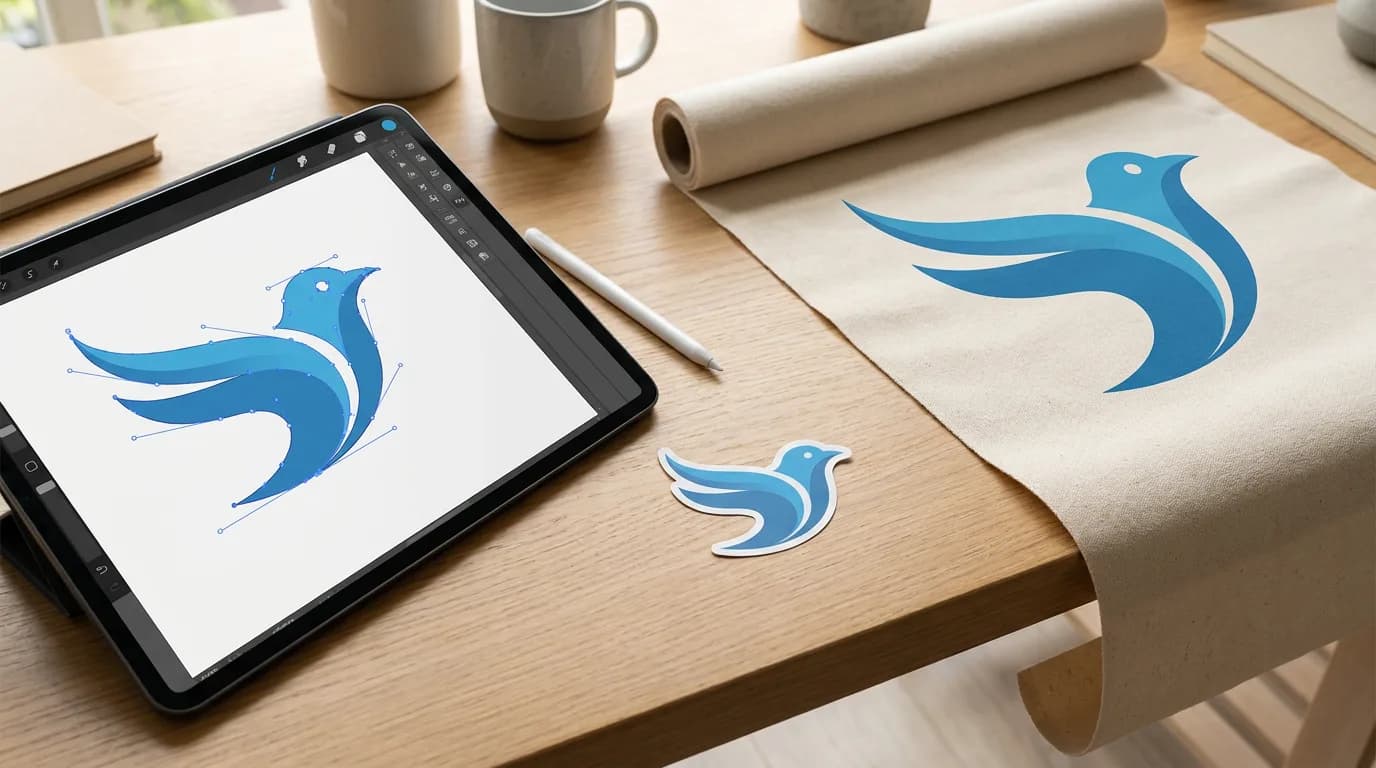
Print shops, sign makers, embroidery services, t-shirt printers and web developers all ask for the same thing sooner or later: "the vector file" of your logo. Usually the only file on hand is a PNG, and the request makes no sense until you know what a vector file actually is. The short version: a vector file stores shapes, a raster file stores pixels, and that one difference decides whether your logo stays sharp on a billboard.
Direct answer. A vector file stores an image as mathematical paths: points, lines, curves and fills. Because the shapes are recalculated at every size, a vector file scales infinitely with no loss of sharpness. Common vector formats are SVG, AI, EPS and design-exported PDF. A PNG or JPG is a raster file, a fixed grid of pixels that blurs when enlarged.
What a Vector File Is: Paths, Not Pixels
A vector file is a set of drawing instructions. Instead of recording what color each tiny square of the image is, it records geometry: start at this point, draw a curve to that point, close the shape, fill it with this blue, outline it with a 2-point black stroke. The curves are usually Bézier curves, defined by anchor points and handles, which is why vector editors show those small squares and levers when you select a shape.
When the image is displayed or printed, software reads the instructions and draws the shapes fresh at the required size. A circle described as "center here, radius this" is a perfect circle at 1 inch or 100 feet. Nothing is stretched, so nothing degrades.
MDN's SVG documentation puts it plainly: compared with bitmap formats such as JPEG or PNG, SVG vector images "can be rendered at any size without loss of quality." Because SVG is XML text, the same file can also be indexed, scripted and edited in a text editor, and its text can be updated without opening a graphics program.
What a Raster File Is
A raster file, also called a bitmap, is a grid of pixels. Every pixel stores one color, and the image is simply all of those colors laid side by side. A 1000 × 1000 pixel PNG holds a million individual color values.
That grid is fixed when the file is created. Enlarge the image and the software has to invent pixels that aren't there, either by making each pixel a bigger block (jagged, "pixelated" edges) or by blending neighbors (soft, blurry edges). Shrinking is fine; enlarging past the original pixel count always costs sharpness.
Raster's strength is detail. A photograph has millions of subtle color shifts, textures and gradients that would be impractical to describe as shapes. That's why every camera, phone and screenshot produces raster images.

Vector vs Raster at a Glance
| Vector | Raster | |
|---|---|---|
| Stores | Paths, curves, fills | A grid of colored pixels |
| Scaling | Any size, always sharp | Blurs or pixelates when enlarged |
| Best for | Logos, icons, type, illustrations, cut files | Photos, detailed textures, screenshots |
| File size | Small for simple art, grows with complexity | Grows with pixel dimensions |
| Editing | Each shape stays separately editable | Edited pixel by pixel or by area |
| Common formats | SVG, AI, EPS, PDF, CDR | JPG, PNG, GIF, WebP, TIFF, HEIC, PSD |
The rule of thumb that follows from the table: if the image was drawn, keep it as a vector; if it was photographed, it's raster.
Which File Types Are Vector and Which Are Raster
Vector formats
- SVG: the web's vector format, also the standard for cutting machines like Cricut and Silhouette.
- AI: Adobe Illustrator's working file.
- EPS: an older PostScript-based print format still requested by some printers and promotional product suppliers.
- PDF: vector when exported from a design app, raster when made from a scan or photo. It can contain both at once.
- CDR: CorelDRAW's native format.
Raster formats
- JPG: compressed photos, small files, no transparency.
- PNG: lossless pixels with transparency, popular for logos on websites, still raster.
- GIF: limited colors, supports simple animation.
- WebP and AVIF: modern compressed web formats.
- TIFF: high-quality print and archival images.
- HEIC: the default photo format on recent iPhones.
- PSD: Photoshop documents, mostly raster layers even though they can hold some vector shapes.
A quick test for any file: zoom to 800% or more. Crisp, smooth edges mean vector content; visible squares mean raster.
SVG vs PNG: Which One to Use
SVG vs PNG is the comparison most people actually face, because both handle transparency and both show up as logo files.
Use SVG for logos, icons, simple illustrations, charts and anything that appears at many sizes: a website header on a 4K monitor, a favicon, a vinyl cut, a storefront sign. A simple SVG logo is often a few kilobytes, and its colors and shapes can be changed later without redrawing.
Use PNG for screenshots, images with photographic detail, textures and complex digital paintings, or anywhere SVG isn't accepted, such as many social platforms and email clients. A PNG is predictable: it looks the same everywhere because the pixels are already decided.
For printing, SVG (or a vector PDF) wins for logos and type, because the printer can output it at any size. For photos, a PNG or TIFF at around 300 pixels per inch at the final size is the standard print guideline. As a worked example, a 24 × 36 inch poster at 300 PPI needs a 7,200 × 10,800 pixel image, which is why stretching a web-sized PNG onto a poster looks soft.
The practical setup most designers use: keep the master logo as SVG, then export PNGs at the exact sizes each platform asks for. Our guide to logo sizes and file formats lists those sizes.
How to Convert a Raster Image to a Vector
There are two routes from raster to vector. Redrawing the image by hand in a vector editor gives the cleanest result and is what a designer does for an important logo. Automatic tracing gets you most of the way in seconds.
Tracing works by grouping pixels into regions of similar color, then drawing a path around each region's edge and smoothing it into curves. The number of colors you allow is the main control: fewer colors give simpler, bolder shapes; more colors keep more detail but produce more paths.
To trace an image in Playyy's image to SVG converter:
- Drop in a PNG, JPG, WebP or HEIC file.
- Set the Colors slider. Start low for a one-color mark, around six for a bright illustration.
- Click Vectorize. Tracing runs locally in your browser, and the result appears on a transparency checkerboard so you can see every shape's edge.
- Adjust the color count and vectorize again until the shapes look right.
- Sign in to download the SVG, or choose Edit as a design to place it on a Playyy canvas with text, layout and brand colors.
Images larger than 2048 pixels on the longest side are scaled to that size before tracing to keep it fast; the finished SVG then scales up to any size.

What Converts Well, and What Becomes a Style
Tracing suits flat artwork. Logos, icons, line art, stickers and cartoon illustrations have solid colors and clear edges, so they turn into clean paths. The PNG to SVG converter is set up for exactly that, including PNGs with transparent backgrounds.
Photos behave differently. A photograph has continuous gradients, so tracing turns every gradient into a set of flat color bands. The result is a stylized, poster-like illustration rather than a scalable copy of the photo. That's useful on purpose, for screen prints, stickers or single-color merch designs, and the JPG to SVG converter is built for that photo-to-vector look. If what you need is the photo itself at a larger size, keep it raster and upscale it instead.
Before tracing a logo, use the largest, cleanest version you have. A sharp 1000-pixel PNG traces far better than a 150-pixel favicon, because the tracer can only follow edges the pixels actually show.
Keep the Vector as Your Master File
A vector file stores shapes as paths, so it scales to any size; a raster file stores pixels, so it's fixed at the size it was made. Keep logos, icons and illustrations as vectors, keep photos as raster, and export PNGs or JPGs from the vector whenever a platform needs a specific pixel size. If all you have is a PNG of your logo, convert it to SVG once and keep that file as the master copy for every print and web job.
Keep Reading
- What Logo Size Do You Actually Need? — pixel sizes for every platform, exported from one vector master.
- Image Converter Guide: Which Format for What — when each raster format is the right export.
- 7 Types of Logos, and the Versions Each One Needs — which logo styles trace cleanly into vector.
- Standard Poster Sizes for Print and Events — the print sizes where vector artwork matters most.

Aiko Tanaka
I work with boutique brands, cafes, creators and small businesses on visual systems, layout discipline, typography and moodboards. My focus is on fast concept exploration that still has a strong design point of view.
Frequently asked questions
No. A PNG is a raster file: it stores a fixed grid of pixels, each with its own color. That's why a small PNG logo goes soft or blocky when you enlarge it. Saving a PNG with a transparent background doesn't change that. To get a vector version, you either need the original design file or you trace the PNG into an SVG.