Social Media Visuals for Every Platform, From One Image
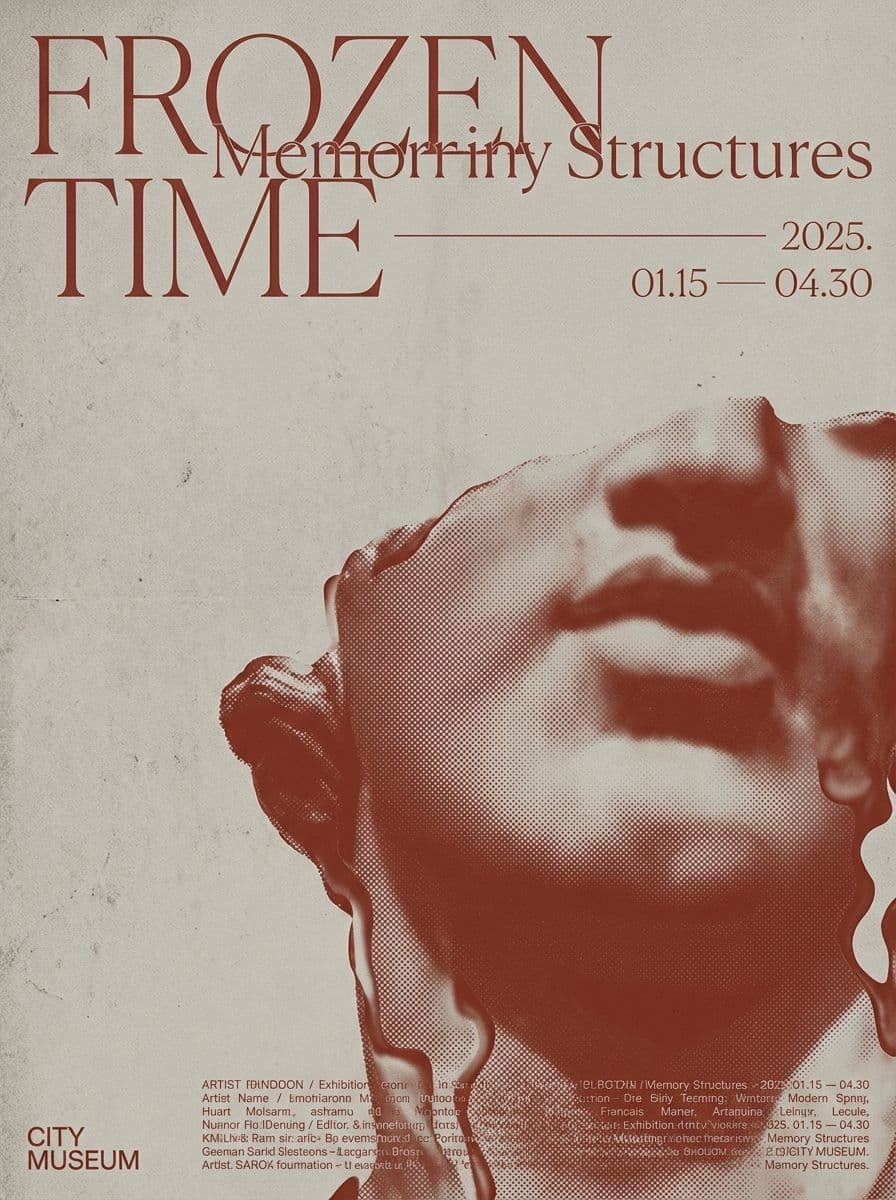
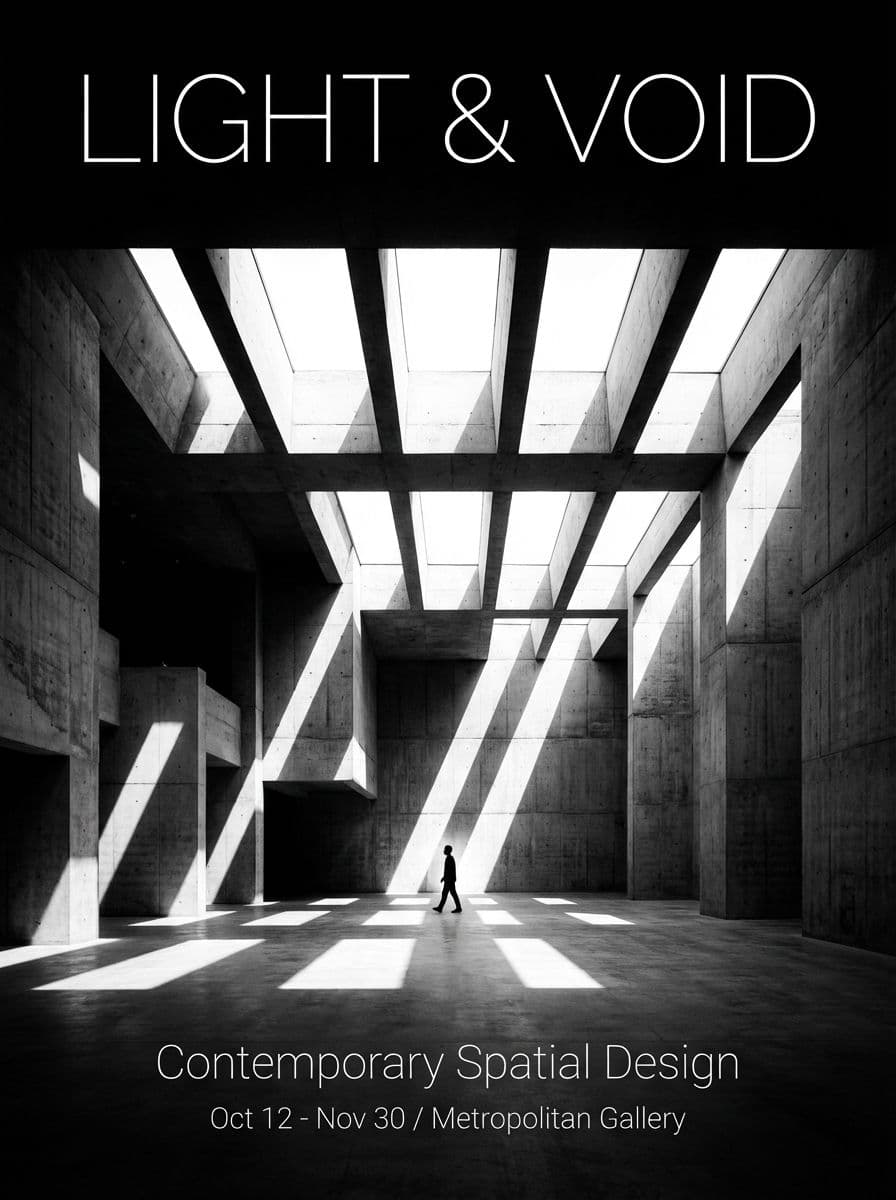
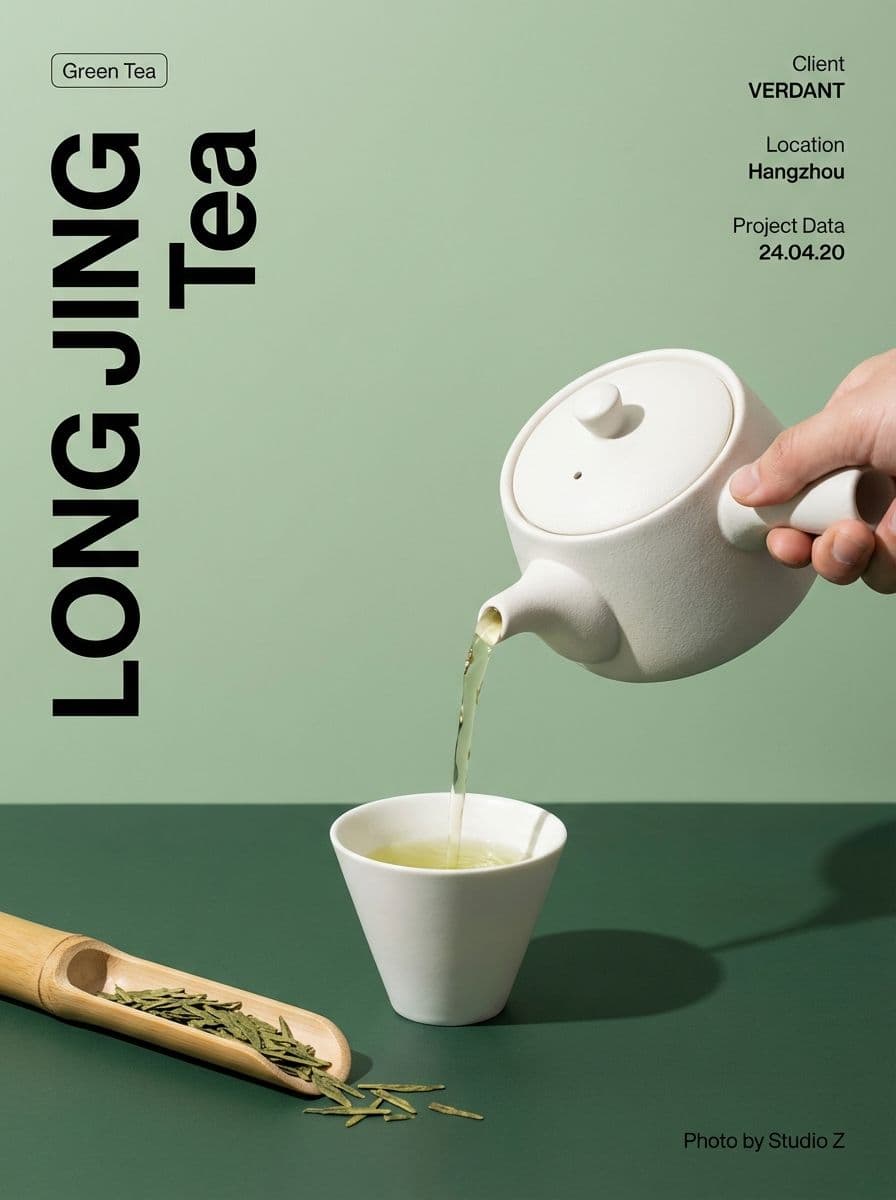
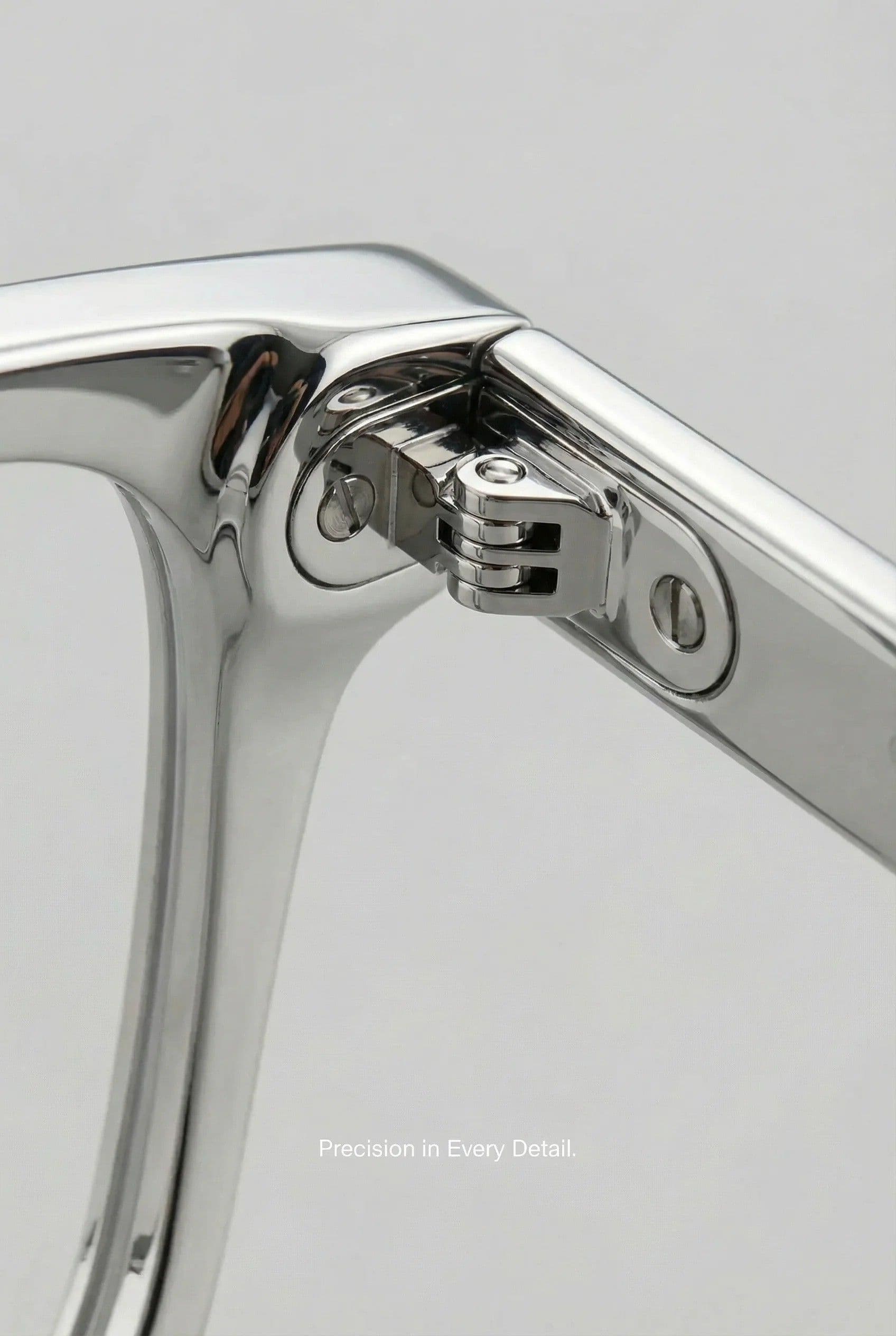
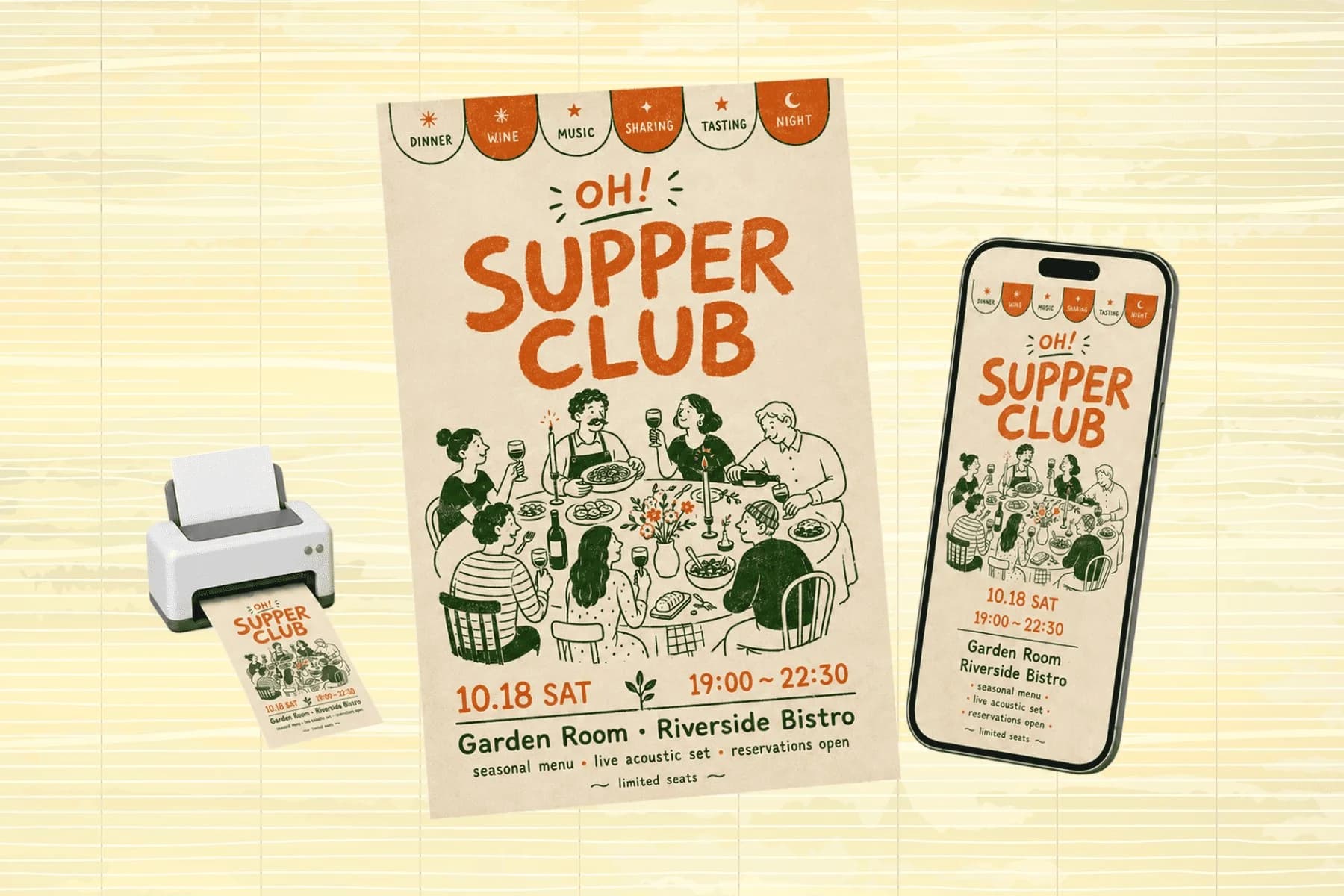
One hero visual, every platform format — YouTube, LinkedIn, Instagram — without manual resizing.
Explore workflowDriven by GPT Image 2.5 & Nano Banana Pro 🍌
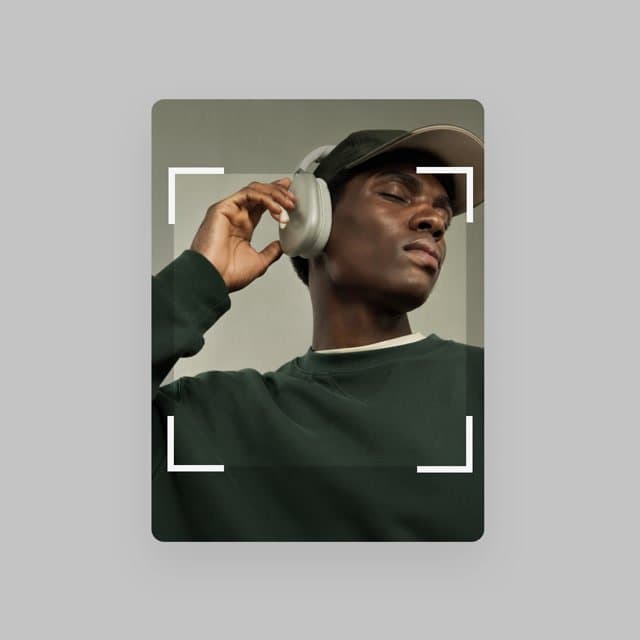
Lock to a ratio, pick a social media preset, or straighten your photo — then download the crop
A workflow built around your real creative needs — from first direction to final asset.
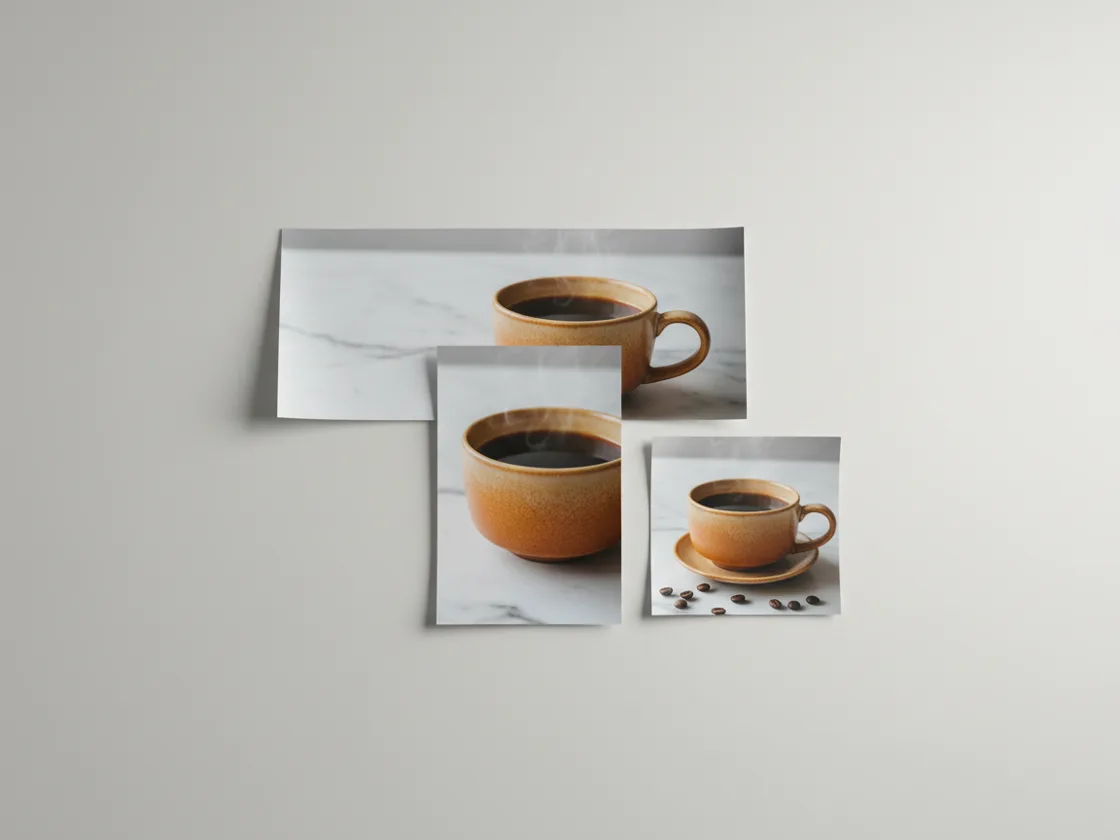
Drag the crop box freely, or lock it to the ratio the destination expects — 1:1 for a marketplace thumbnail, 4:5 for a feed post, 16:9 for a video cover, 3:2 for print. Eleven presets are one tap away. Locking the ratio first means you compose inside the final frame instead of cropping twice when the first attempt comes back the wrong shape.
Try for free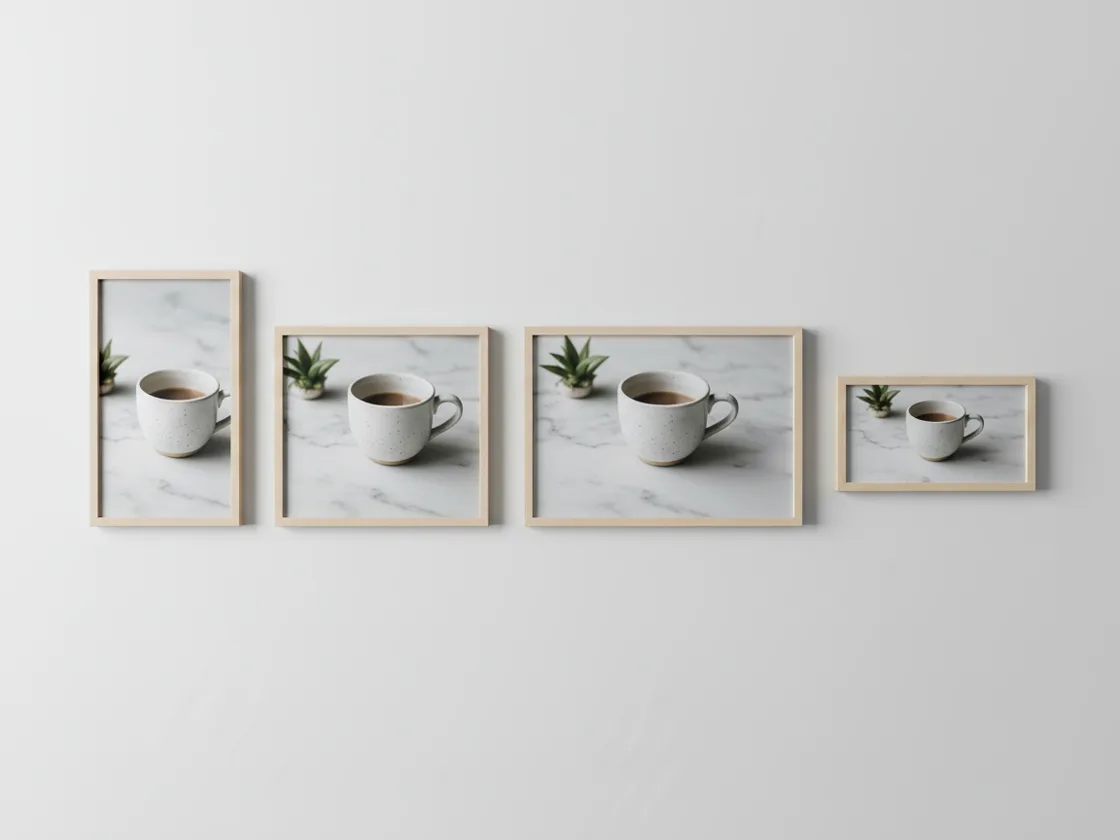
A separate presets tab holds the shapes the platforms expect, so you don't have to remember whether a feed post wants 4:5 or 1:1 this year. Pick the destination, the crop box snaps to it, and you position the subject inside the frame that will actually be published rather than guessing and re-cropping after the upload gets letterboxed.
Try for free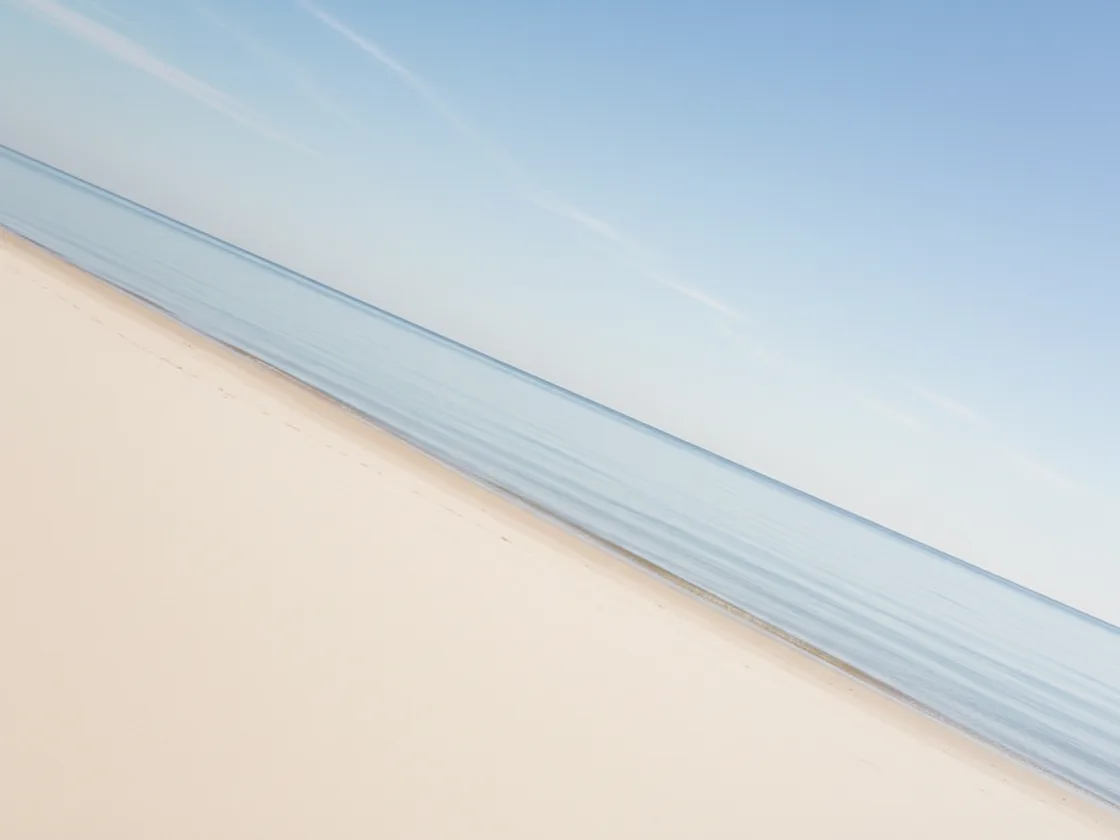
A rotate control sits in the same panel, which matters because straightening and cropping are the same job. Level a tilted horizon by fractions of a degree, and the crop box takes care of the wedges the rotation exposes at the corners — one pass, rather than rotating in one tool and cropping away the damage in another.
Try for freeDrag the box anywhere, or lock it to 1:1, 4:5, 16:9, 3:2, and the other common ratios so the crop can't drift off-shape while you position it.
A dedicated presets tab covers the shapes the platforms publish at, so you crop into the frame that ships instead of looking the dimensions up first.
Original, 1:1, 2:3, 3:2, 3:4, 4:3, 4:5, 5:4, 9:16, 16:9, and 27:9 — one tap each, and the box holds the shape while you position it.
A crop keeps only the area inside the frame, reducing the total pixel count. The result exports as PNG; straightening can resample pixels as it rotates the image.
A rotate slider in the same panel levels a tilted horizon by fractions of a degree, and the crop box absorbs the corners the rotation exposes.
The cropped image downloads as PNG, preserving an existing transparent background instead of flattening it onto white.
Most cropping mistakes come from composing freehand and only then discovering the destination wanted a square. Locking the ratio before you drag puts the constraint first, so what you see while positioning is the final frame. It sounds small, but it removes the most common reason people crop the same photo three times.
Playyy renders the cropped area as PNG, so it does not add another round of JPEG compression. Cropping reduces the total number of pixels; straightening can also resample the retained area.
A crop is rarely the last step: the shot usually also needs straightening, a brightness lift, or a background clean-up before it ships. Because cropping happens inside the full editor, you move to the next step without exporting and re-uploading, and the file is written once at the end instead of after every operation.
One hero visual, every platform format — YouTube, LinkedIn, Instagram — without manual resizing.
Explore workflow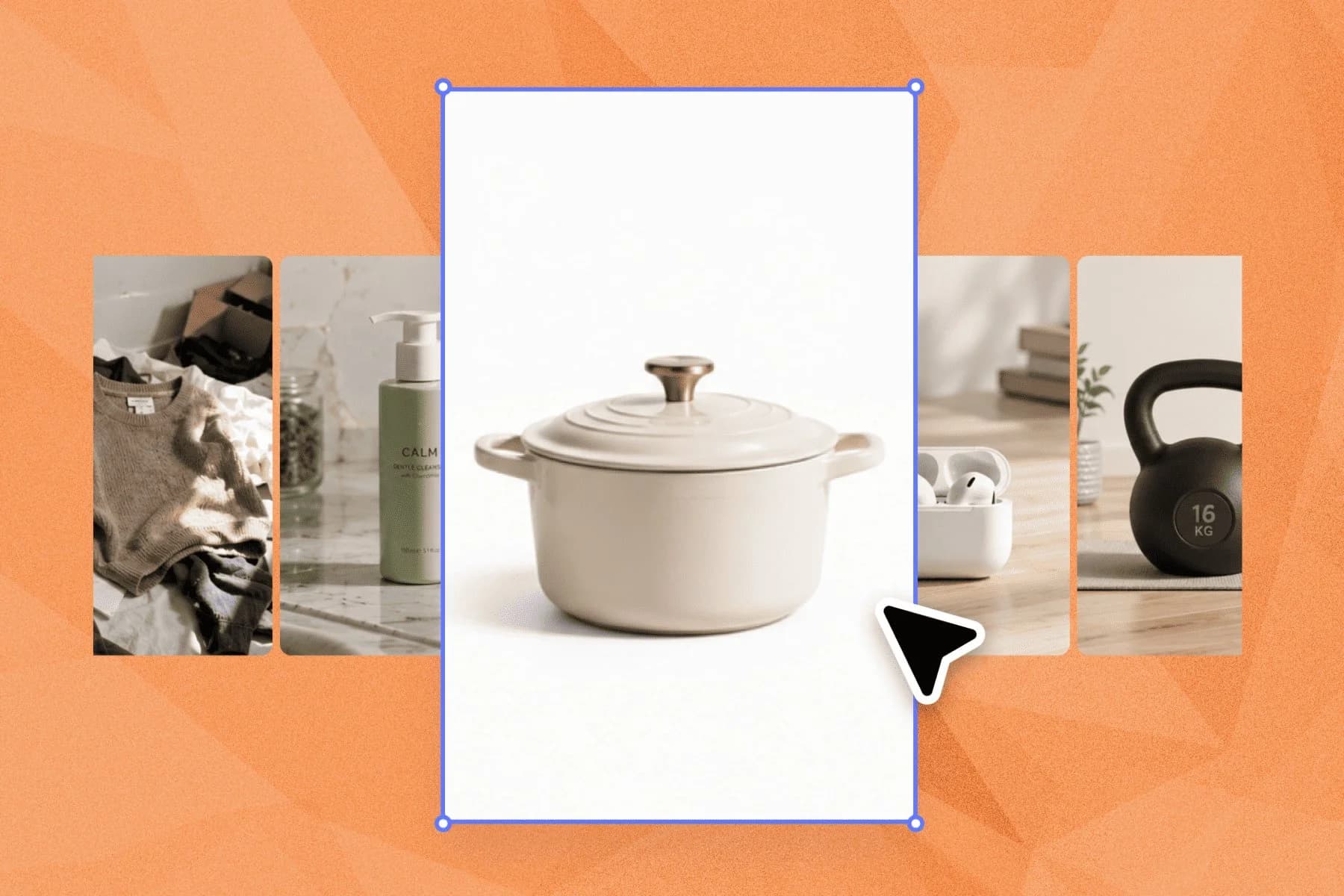
Ecommerce image editing across every SKU — background removal, cleanup, and upscaling that meet marketplace specs.
Explore workflowUpload the photo, drag the crop box over the area you want to keep, and download the result. Lock the box to a ratio such as 1:1 or 16:9 first if the destination expects a specific shape, or enter exact pixel dimensions.
Cropping reduces the total pixel count because you keep a smaller area. The result exports as PNG without additional JPEG compression; using the straighten control can resample the image.
Yes. Eleven presets are one tap away — Original, 1:1, 2:3, 3:2, 3:4, 4:3, 4:5, 5:4, 9:16, 16:9, and 27:9 — and a separate tab holds the social media shapes. Lock the ratio first, then position the box.
Yes. A rotate control sits in the same panel, so you can level a tilted horizon and crop away the corners the rotation exposes in one pass rather than switching tools.
It depends on the destination: 1:1 for marketplace and profile thumbnails, 4:5 for Instagram feed posts, 9:16 for stories and short video covers, 16:9 for video thumbnails and presentation slides, and 3:2 for most print sizes.
PNG, JPG, WebP, and HEIC. Transparency is preserved on PNG and WebP, so a cutout that already has a transparent background keeps it through the crop.
See how teams are using Playyy to ship better visuals, faster.
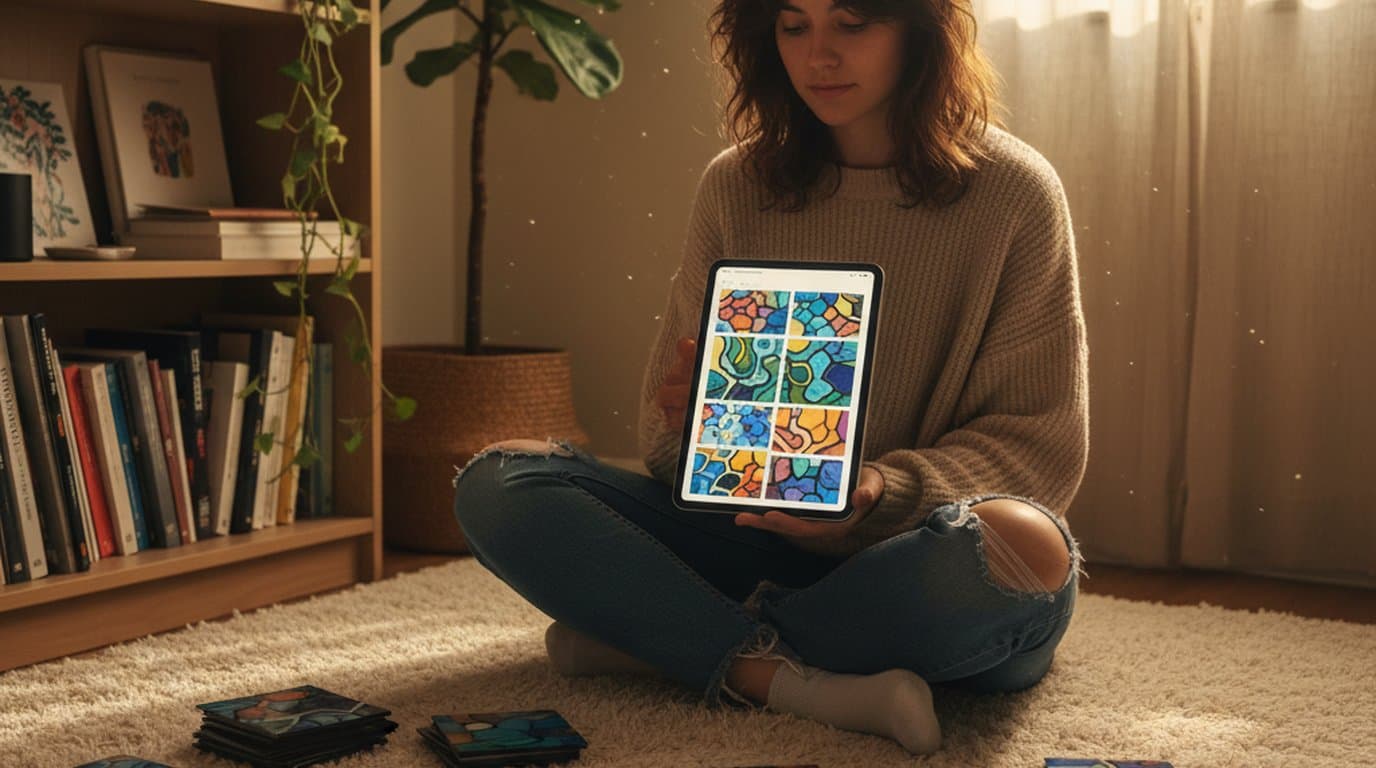
An indie systems creator runs a 10-slide weekly carousel and a 30-slide course launch by stitching images on Playyy's editable canvas — one tab, not five.
 Minji Park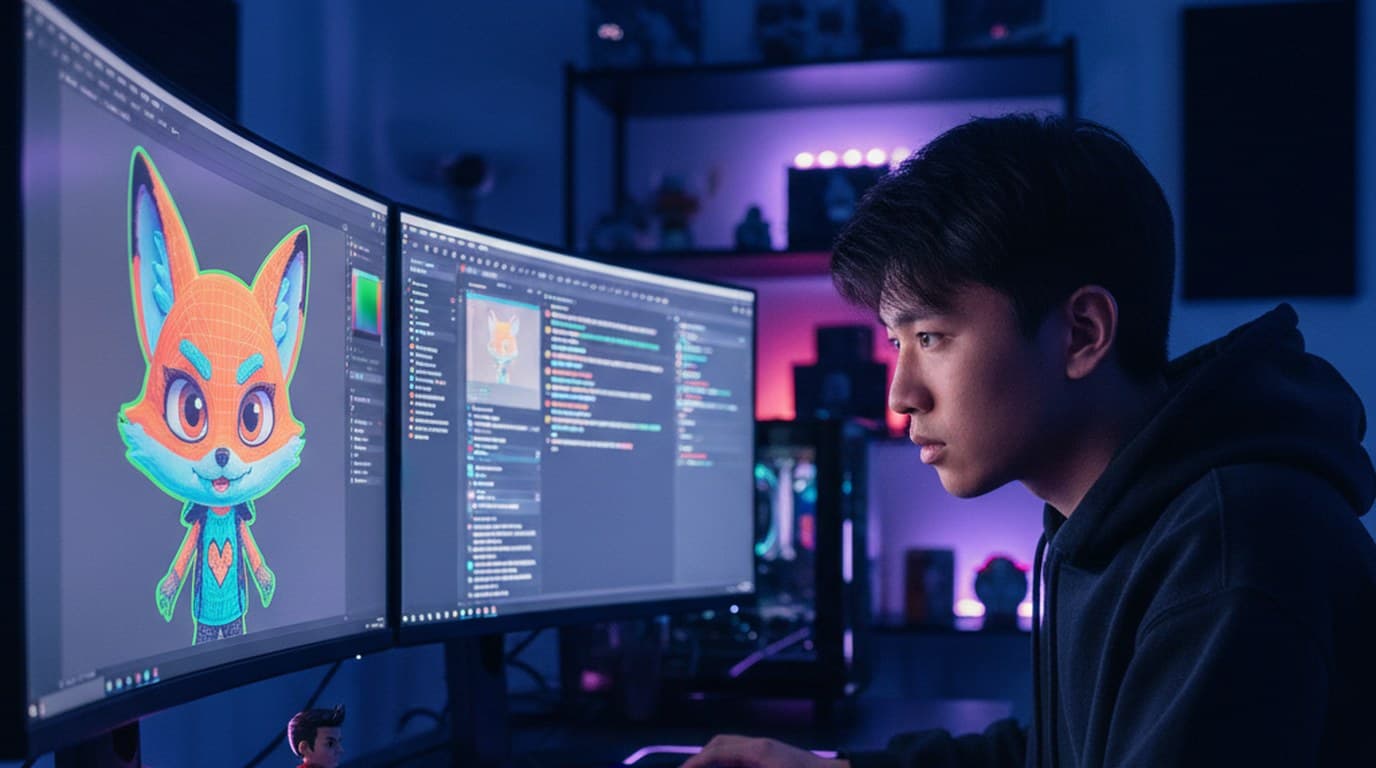
A mid-size Twitch streamer and YouTube gaming creator cut per-refresh commissions to zero and shrank the visual brand refresh from 6 hours to 45 minutes using Playyy.
Minji Park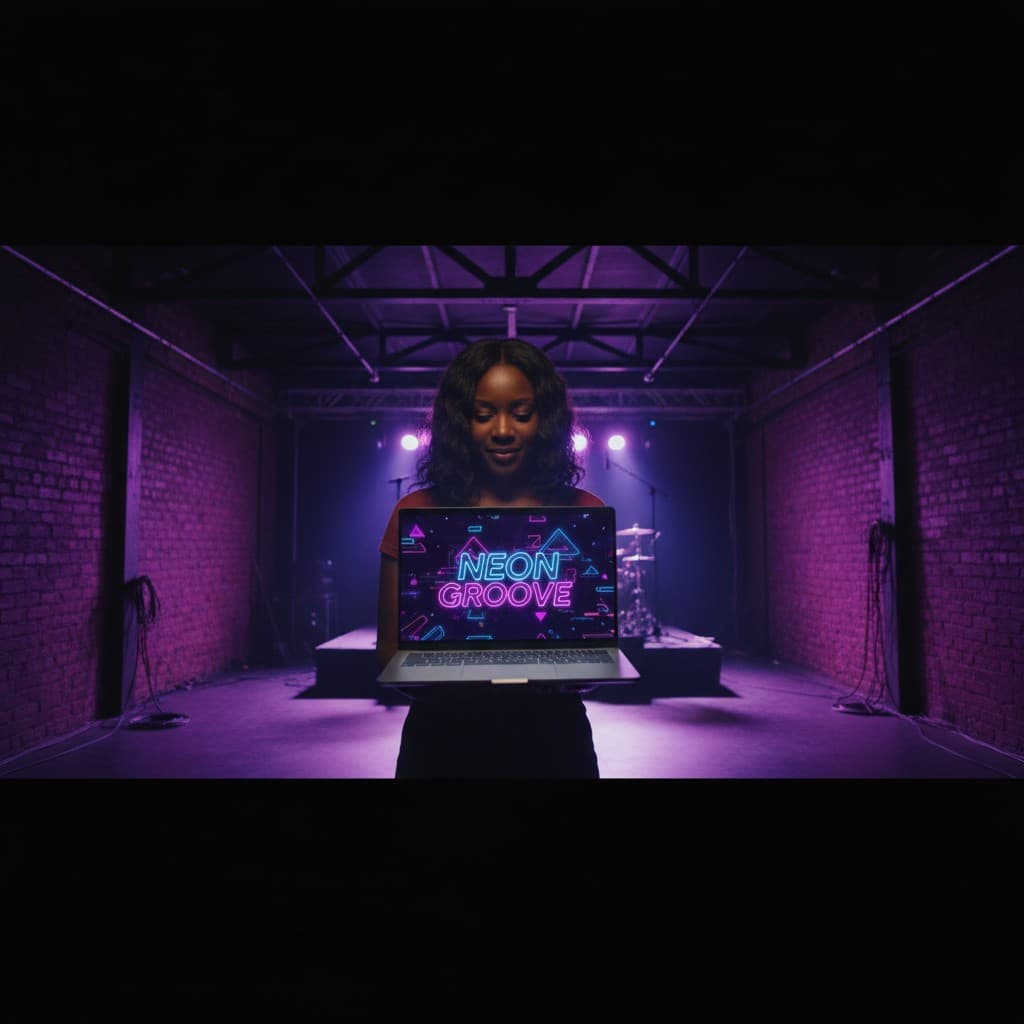
YouTube channel banner, profile picture, and 4 end-card variants — zero design cost, one afternoon, no designer.
 Luca Moretti
Keep every image on brand, control the final look, and turn campaign ideas into polished assets without waiting on another design cycle.